Trans Nzoia County · PMTS

County PMTS Staff System Manual

Complete training guide — features, workflows, roles, screenshots, and day-to-day operations

18 Chapters
v3.0 Version
June 13, 2026 Last updated
Reading PDF

System Overview

What PMTS is, who it serves, and the modules available to county staff.

The Projects Monitoring and Tracking System (PMTS) is the county's authoritative platform for registering, tracking, reporting, and publishing development projects. Staff use it to maintain accurate project records; citizens use the public portal to view approved projects and provide feedback.

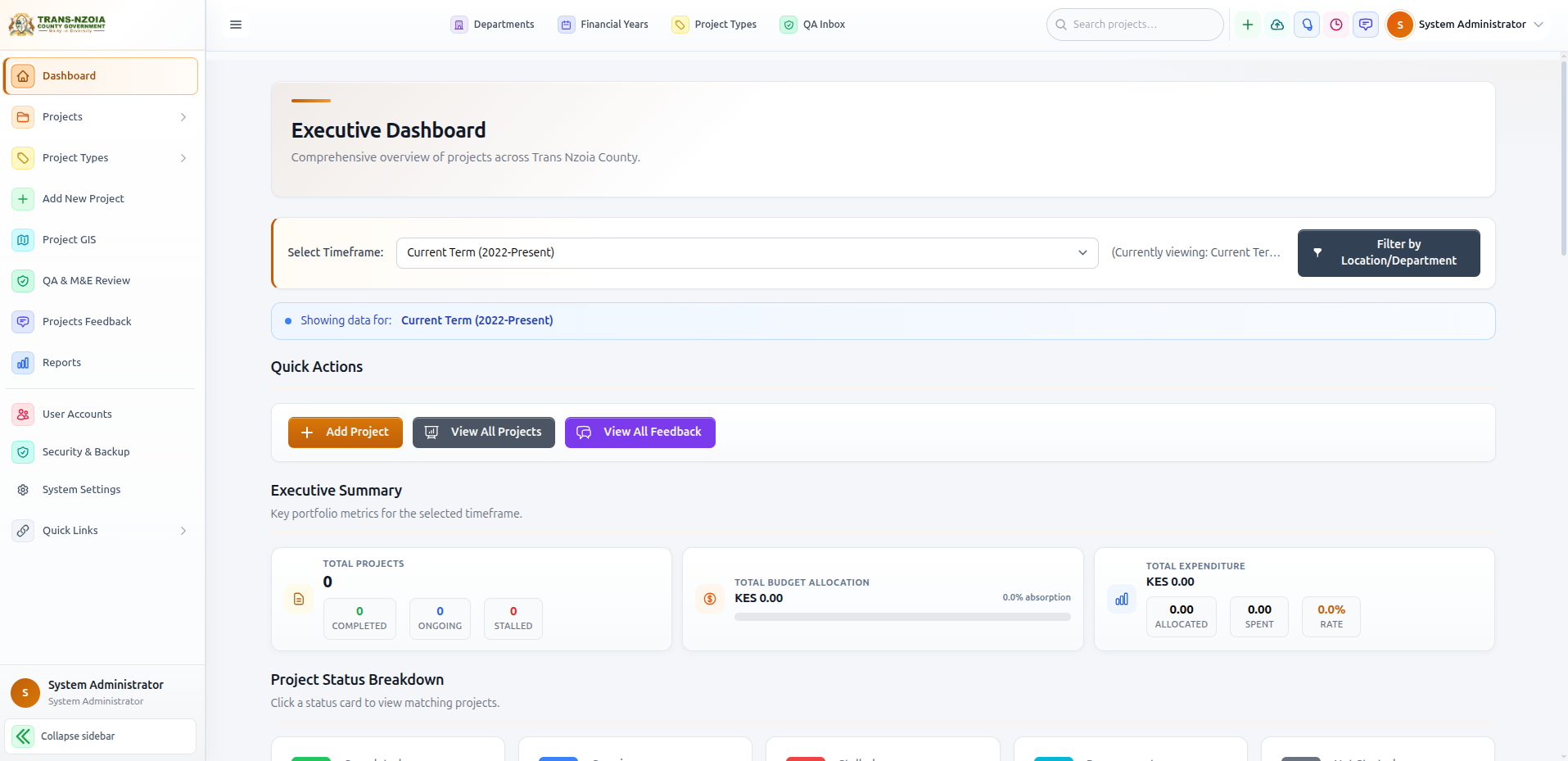
Executive dashboard with KPI strip, charts, and county-wide filters
Figure 1 — Executive dashboard: your county-wide command centre for project delivery.

Core modules

ModulePurposePrimary users
ProjectsCRUD, photos, progress, GIS mapDepartment staff
QA & M&EPublication review gate before public visibilityEconomic Planning
ReportsFinancial, geographic, and performance analyticsCounty leadership & admin
FeedbackCitizen ratings and comments on projectsAll staff
ResourcesDownloadable policies, reports, templatesCounty leadership & admin
UpdatesCounty news and project announcementsCounty leadership & admin
User accountsStaff onboarding, roles, security & backupSystem administrators

Getting Started & Login

How staff access the portal, choose the correct role, and land on the right dashboard.

Every county staff member receives a work email and temporary password from the system administrator. Use the Staff Login page — not the citizen registration flow.

  1. 1
    Open the staff login page

    From the public website header, click Staff Login (or go to /accounts/login/).

  2. 2
    Enter your county email and password

    Use the email assigned by ICT — e.g. name@county.go.ke or your department address.

  3. 3
    Confirm your role (if prompted)

    System administrators may sign in under any staff role for support. All other staff use only their assigned role.

  4. 4
    Change your password on first login

    Go to Profile → change password. Never share credentials.

  5. 5
    Bookmark your dashboard

    County leadership and admins land on the Executive Dashboard; department staff on My Department; Economic Planning on QA Dashboard.

Roles & Permissions

Who can do what — county leadership, department staff, planning, and admin.

Your role is assigned to your account and applied automatically at login. Capabilities below reflect the current PMTS permission model.

Role groupExamplesLanding dashboard
County leadershipGovernor, Deputy Governor, County Secretary, ExecutiveExecutive Dashboard
Economic PlanningPlanning (QA / M&E)QA & M&E Review
Department leadershipCEC, Chief OfficerMy Department
Department staffDirector, Staff, DepartmentalMy Department
System adminAdministratorExecutive Dashboard + admin tools

Capability matrix

ActionDepartment staffCounty leadershipPlanning QAAdmin
Create / edit projects✓ (own dept)View county-wideReview queue
Bulk import (Excel)
Bulk edit grid
Submit for QA publication
Approve / reject publication
Reports & analytics hubDept scope✓ County-wide
Executive feedback on projects
Manage user accounts
Security, backup & system settings
Manage downloads & news postsViewView
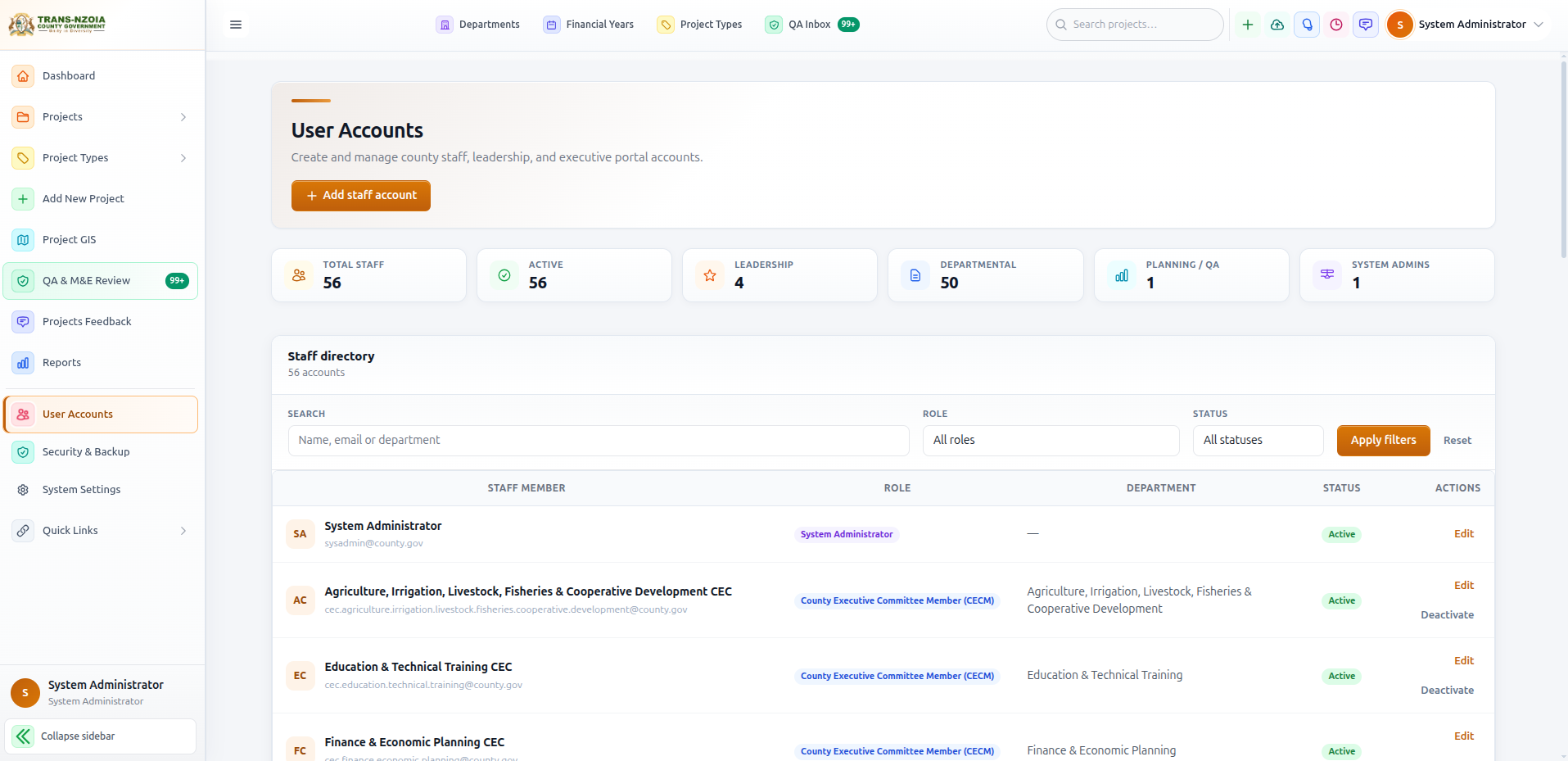
User Accounts management screen for system administrators
Figure 2 — System administrators create staff accounts and assign roles here.

Staff Training Paths

Recommended learning sequence by role — use this section to onboard new staff.

Use the paths below in induction workshops. Each path lists pages to open, tasks to practise, and the manual sections to read. Allow 2–4 hours per role tier.

Department staff (project managers)

  1. Login → confirm My Department dashboard loads.
  2. Sidebar → All Projects → apply department filter → open one project.
  3. Practise: Add New Project → select type → complete mandatory fields → save as draft.
  4. Practise: Update progress and expenditure on an existing project.
  5. Practise: Upload at least one geotagged photo.
  6. Practise: Bulk Import — download template, import 3 sample rows, preview, save.
  7. Submit one project for QA review; track status under My QA Submissions.
  8. Open Projects Feedback → read and practise a staff reply.

Economic Planning (QA / M&E)

  1. Login → QA & M&E Review dashboard.
  2. Filter pending submissions → open one project review screen.
  3. Practise: Approve one complete record; reject one with clear correction notes.
  4. Review QA metrics on the Reports hub.
  5. Monitor publication_status on the project list filter.
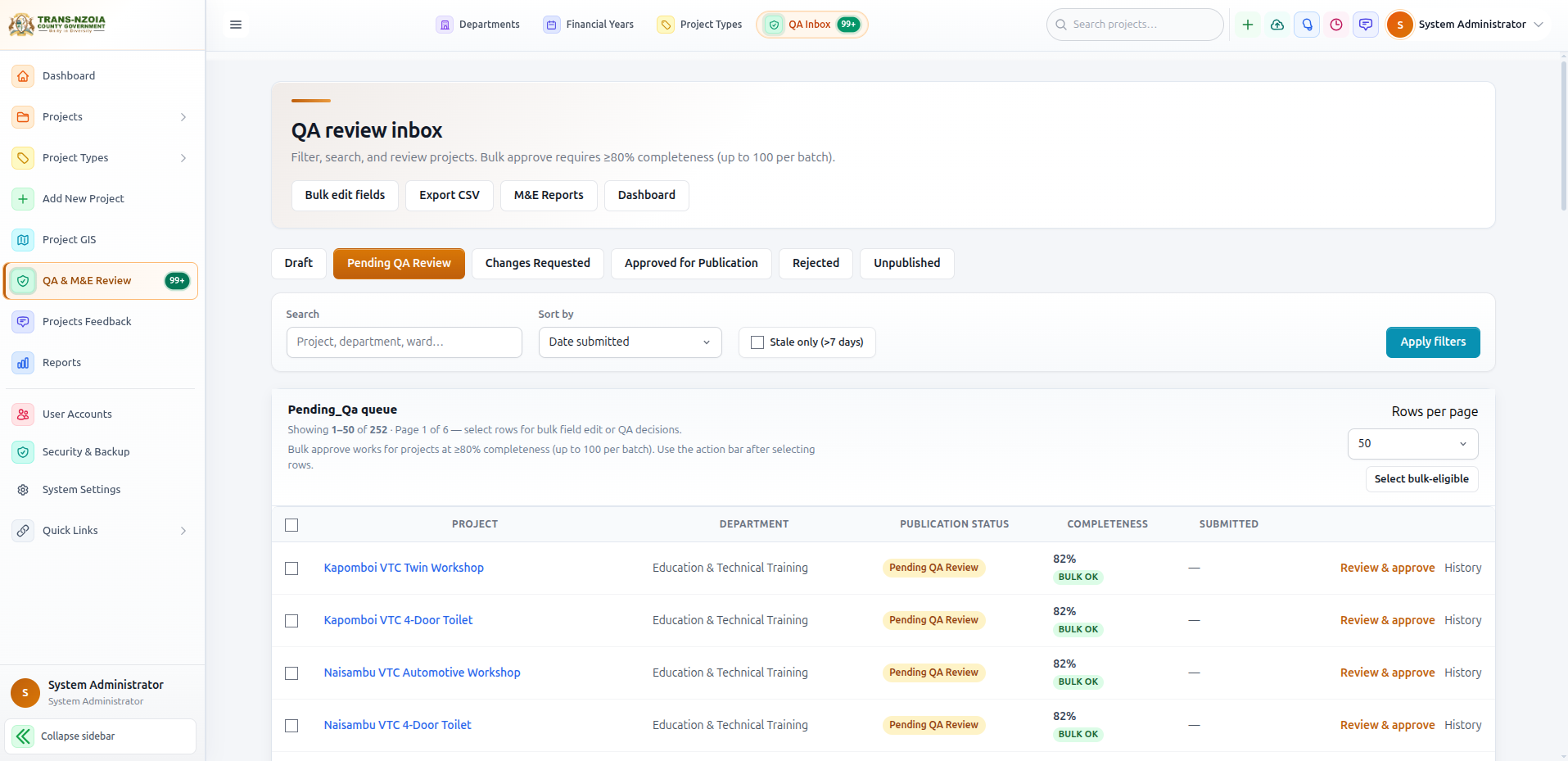
QA & M&E Review inbox showing pending publication submissions
Figure 3 — Planning reviewers work from this queue daily.

County leadership

  1. Login → Executive Dashboard → explore KPI strip and timeframe filters.
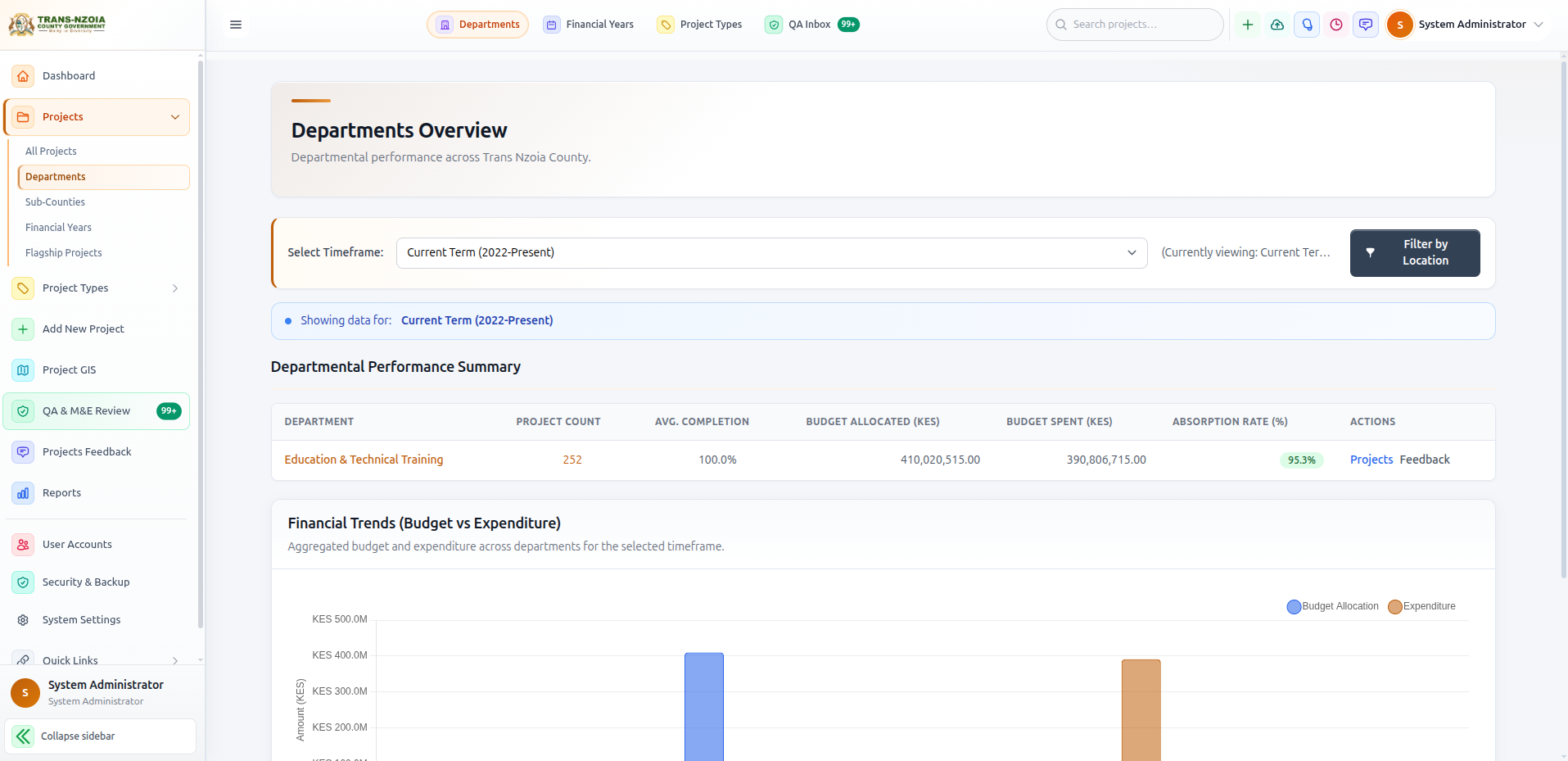
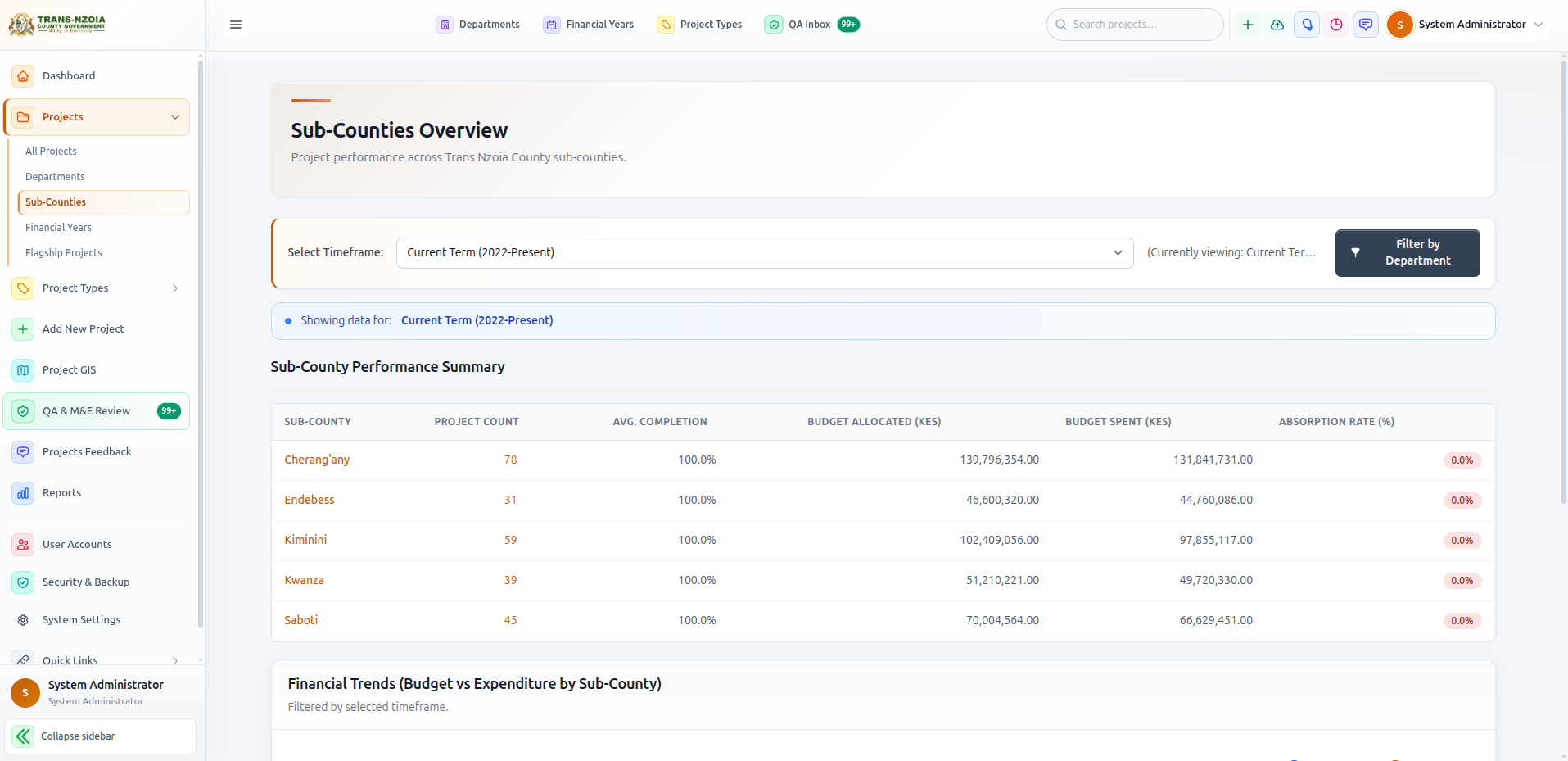
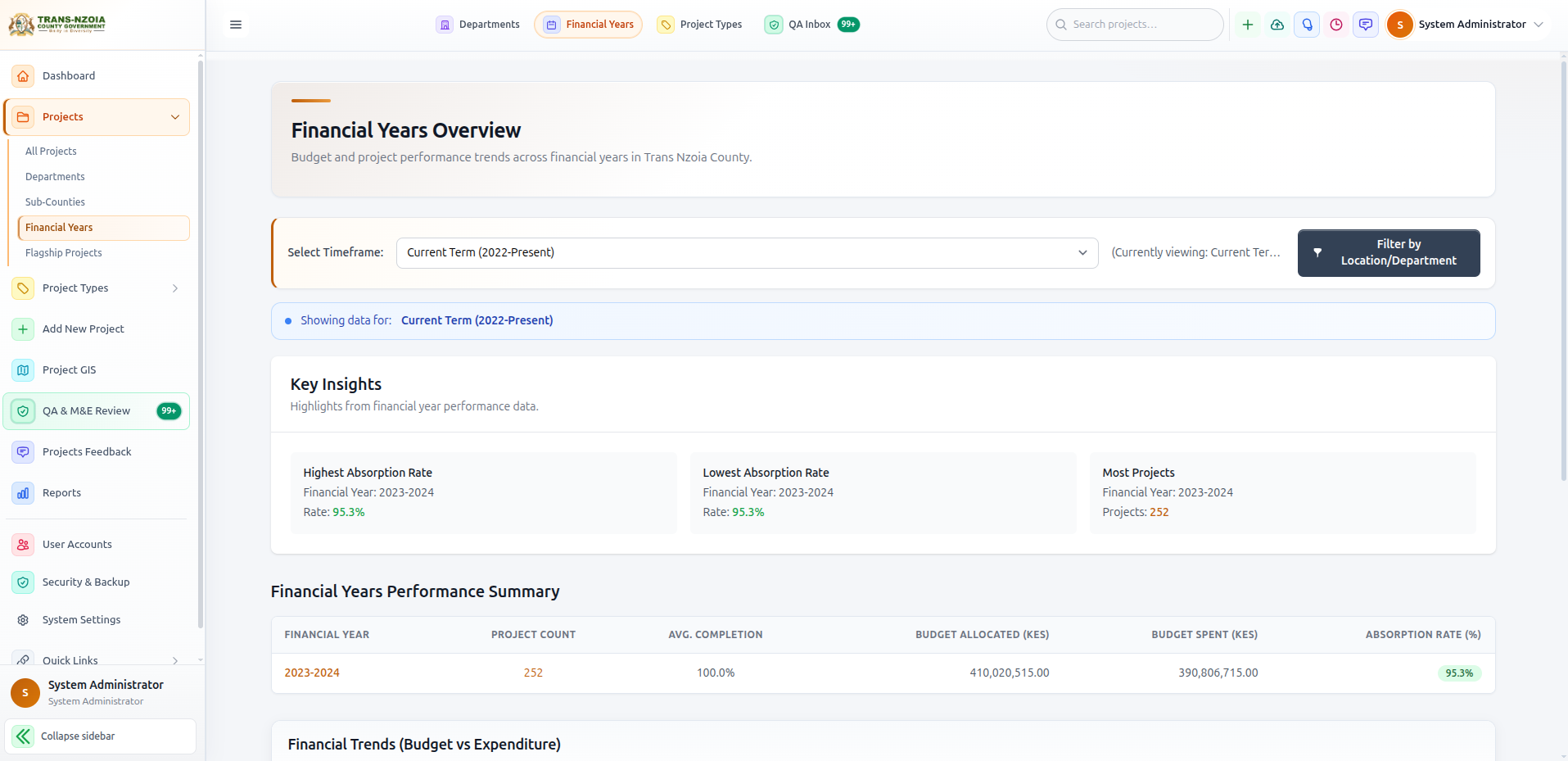
  2. Open Departments, Sub-Counties, and Financial Years analytics pages.
  3. Open Reports → review Key Insights and export a PDF sample.
  4. Open Projects Feedback → review sentiment by location.
  5. Leave executive feedback on one flagship project.

System administrator

  1. Create a test staff account with department staff role.
  2. Verify login redirect and sidebar links for that account.
  3. Review Security & Backup → run a security scan → create a database backup.
  4. Review System Settings → confirm portal contact details and SEO.
  5. Open Activity Log → confirm audit entries for your test actions.

Creating Projects

Select a programme type, complete the form, and submit for QA when ready.

  1. 1
    Open Add New Project

    Sidebar → Add New Project (requires project manager or admin role).

  2. 2
    Choose project type

    Pick Departmental, FLLOCA, or KDSP II. Tick Flagship to mark a county leadership priority.

  3. 3
    Complete core fields

    Name, description, department, ward, budget allocation, expenditure, financial year (YYYY-YYYY), status, percentage complete, funding source, contractor (where required), and photos.

  4. 4
    Fill programme fields

    Custom fields appear below the standard sections for your selected type.

  5. 5
    Save

    New projects start as draft / pending publication. Update progress and submit to QA when ready for public visibility.

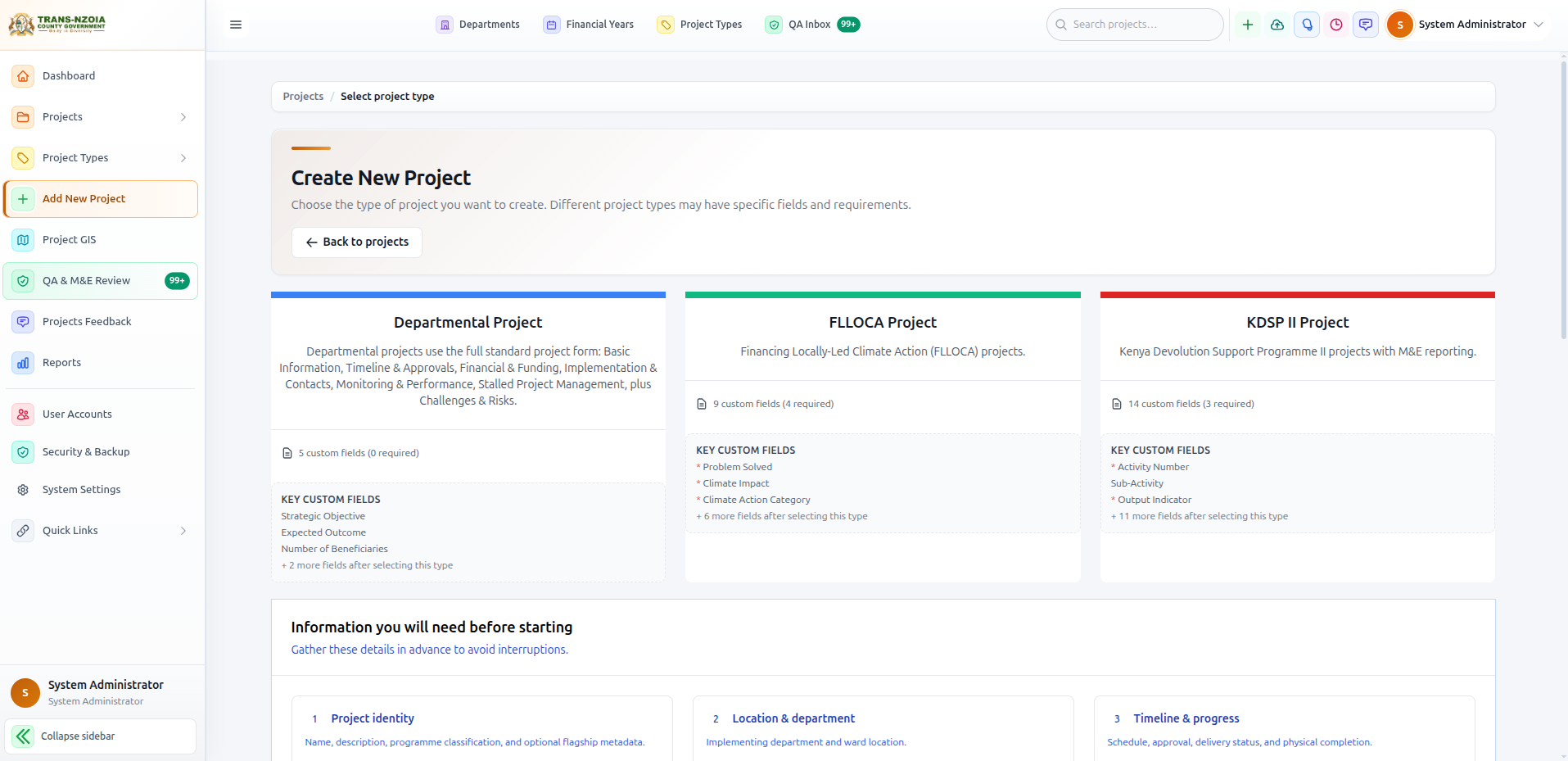
Add New Project — select project type screen
Step 1 — Choose the programme type before the form loads type-specific fields.
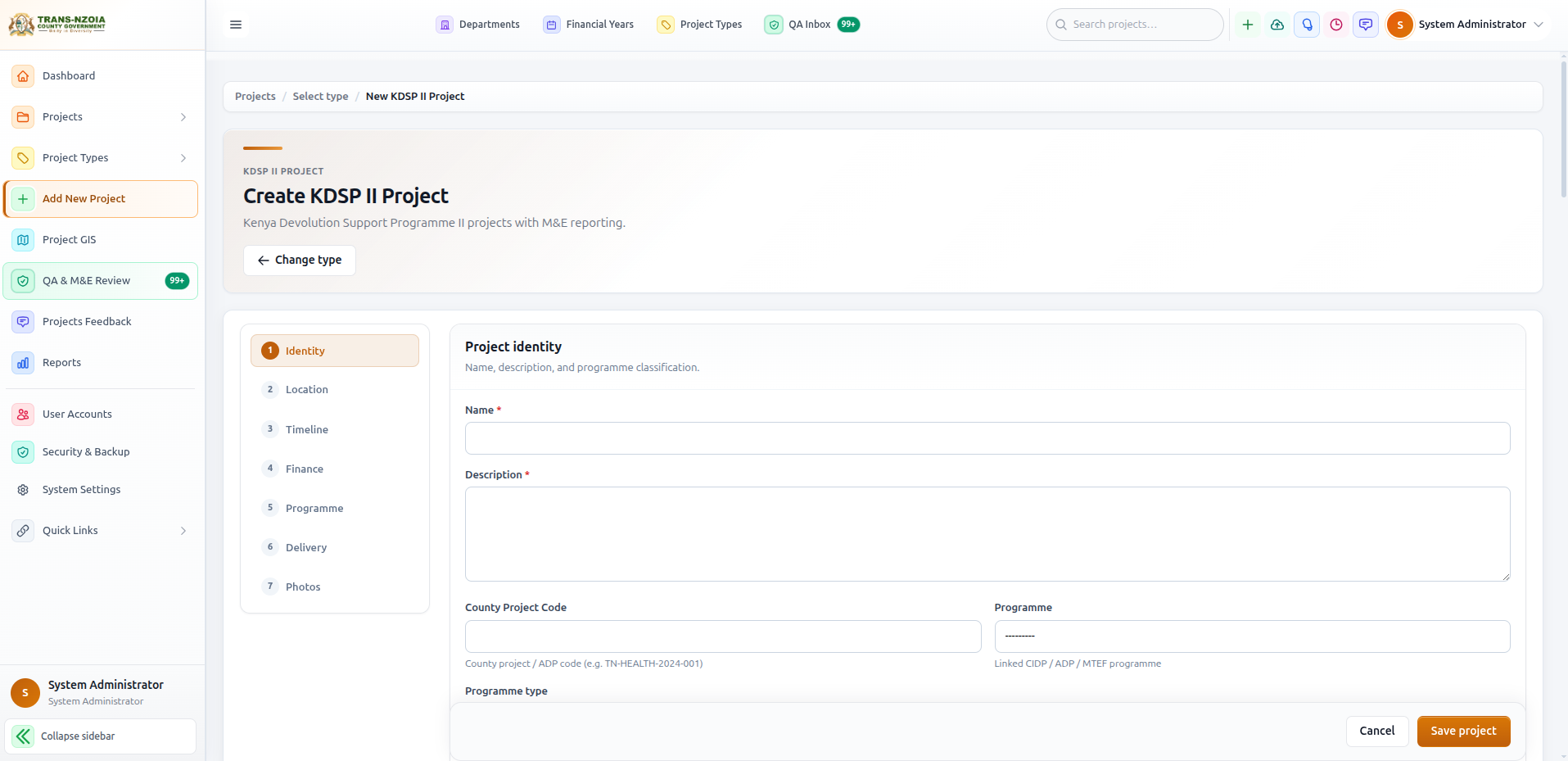
Project creation form with core and programme-specific fields
Step 2 — Complete all mandatory fields. Red asterisks indicate required data.

Managing Projects

Project detail page, edits, photos, progress updates, and executive feedback.

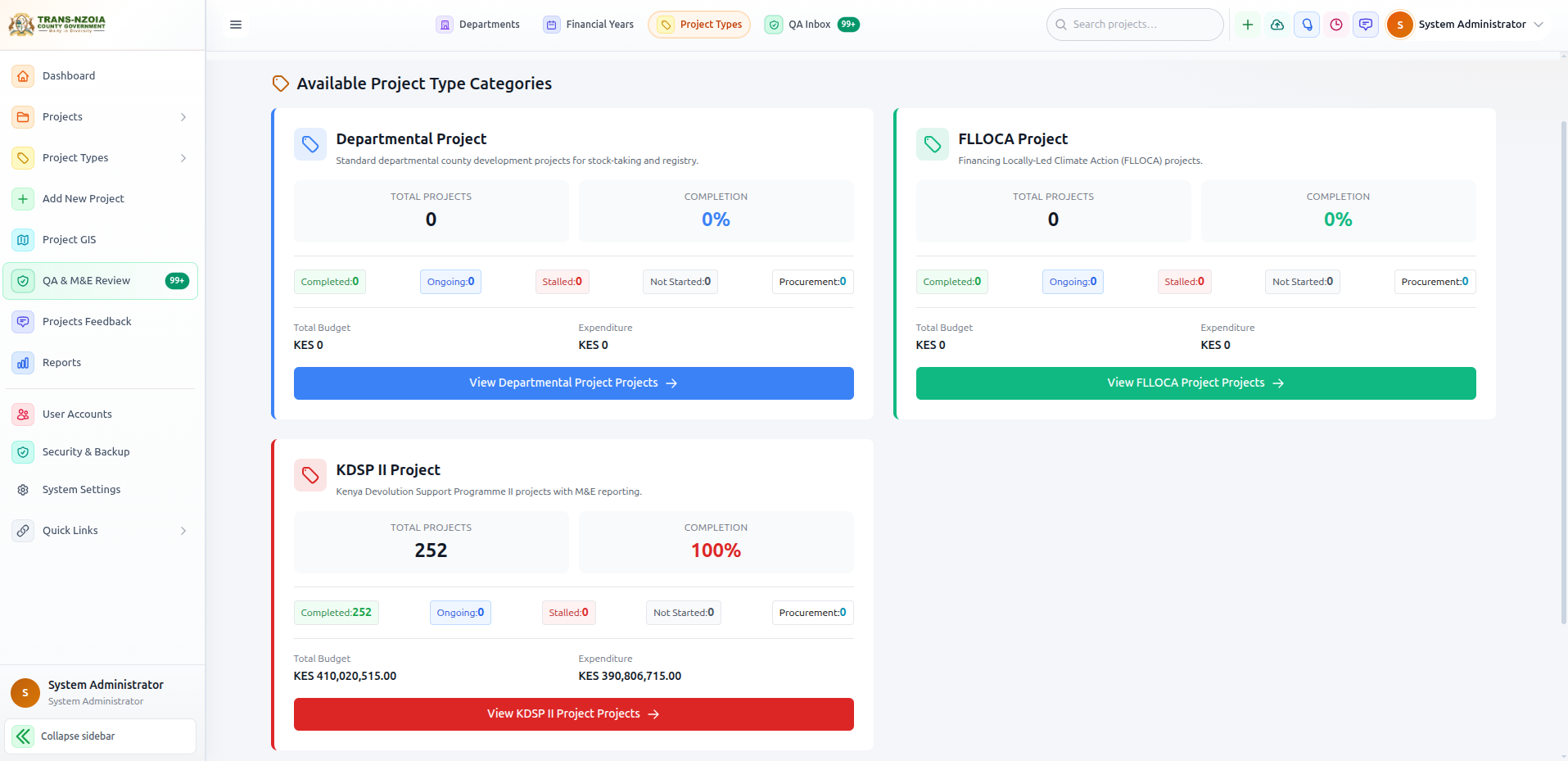
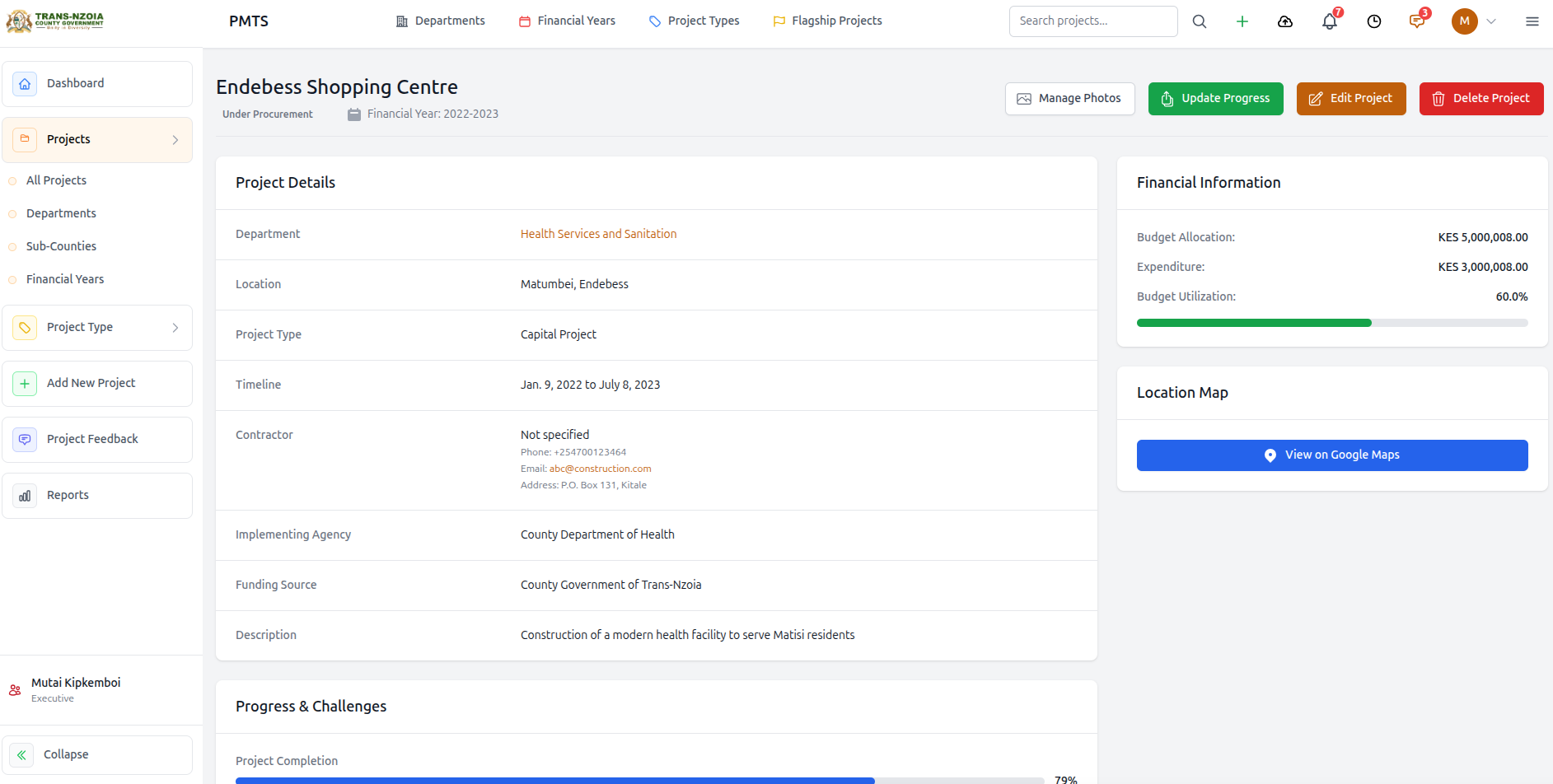
Project detail page

  • Overview — status, budget absorption, timeline, location, type-specific fields
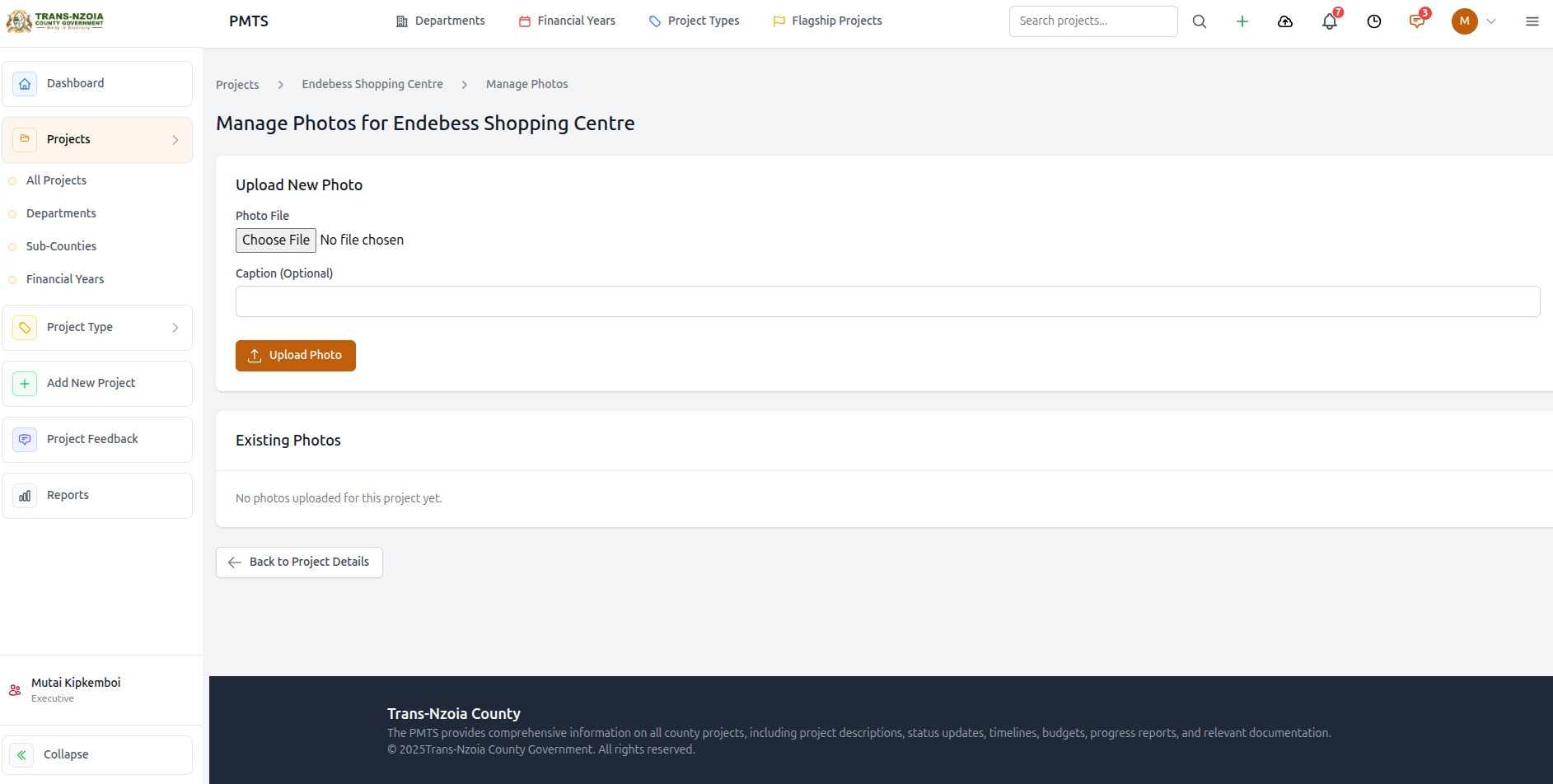
  • Photos — upload, caption, set cover image; visible on public portal when published
  • Updates — milestone notes tied to the project
  • Feedback — citizen ratings and comments; staff can review and respond
  • Documents — attachments linked to the project record
  • GIS — set or view coordinates on the map
  • QA status — publication workflow state and review history
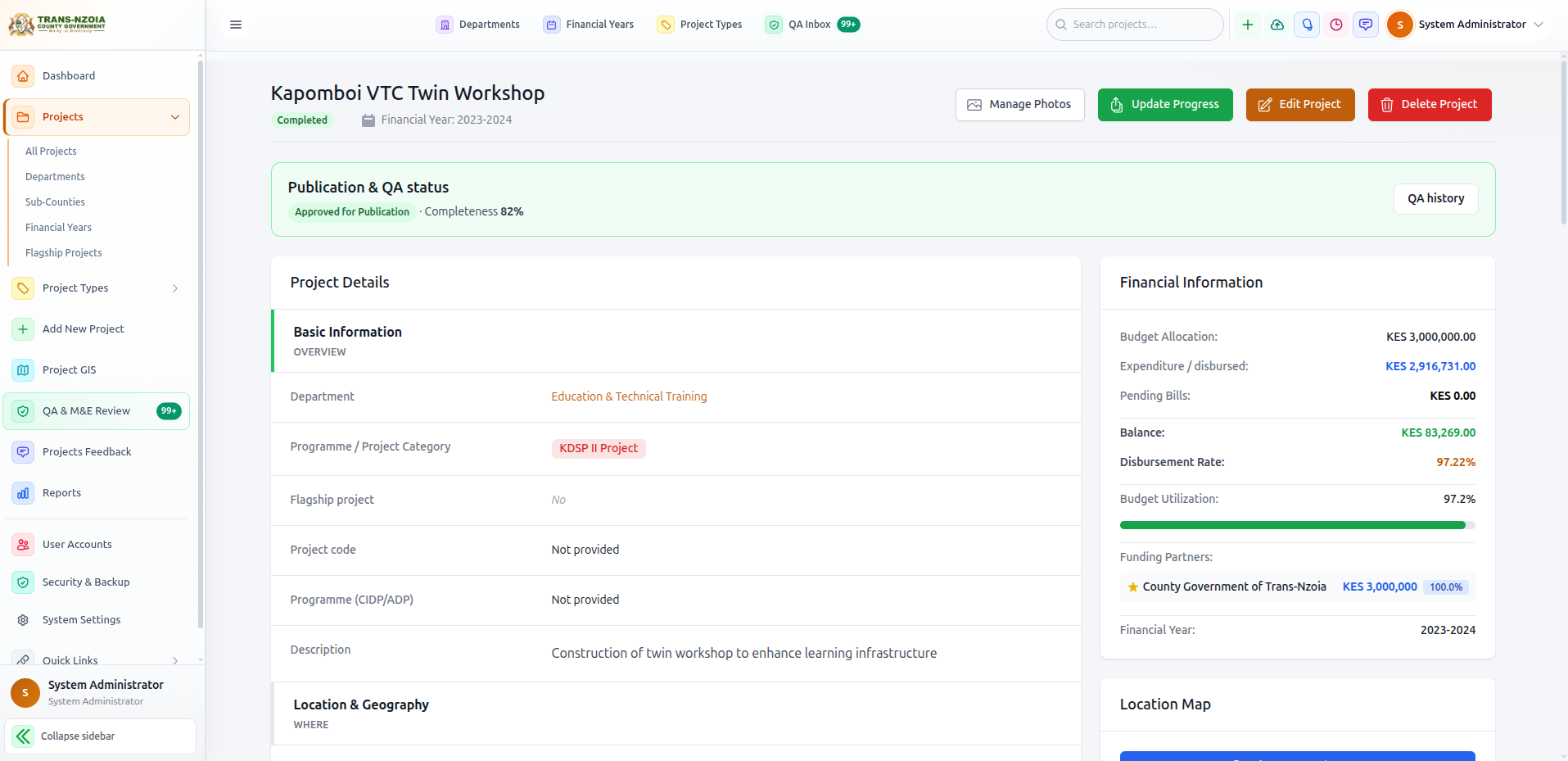
Staff project detail page with tabs and action buttons
Project detail — central hub for all project management tasks.

Editing & progress

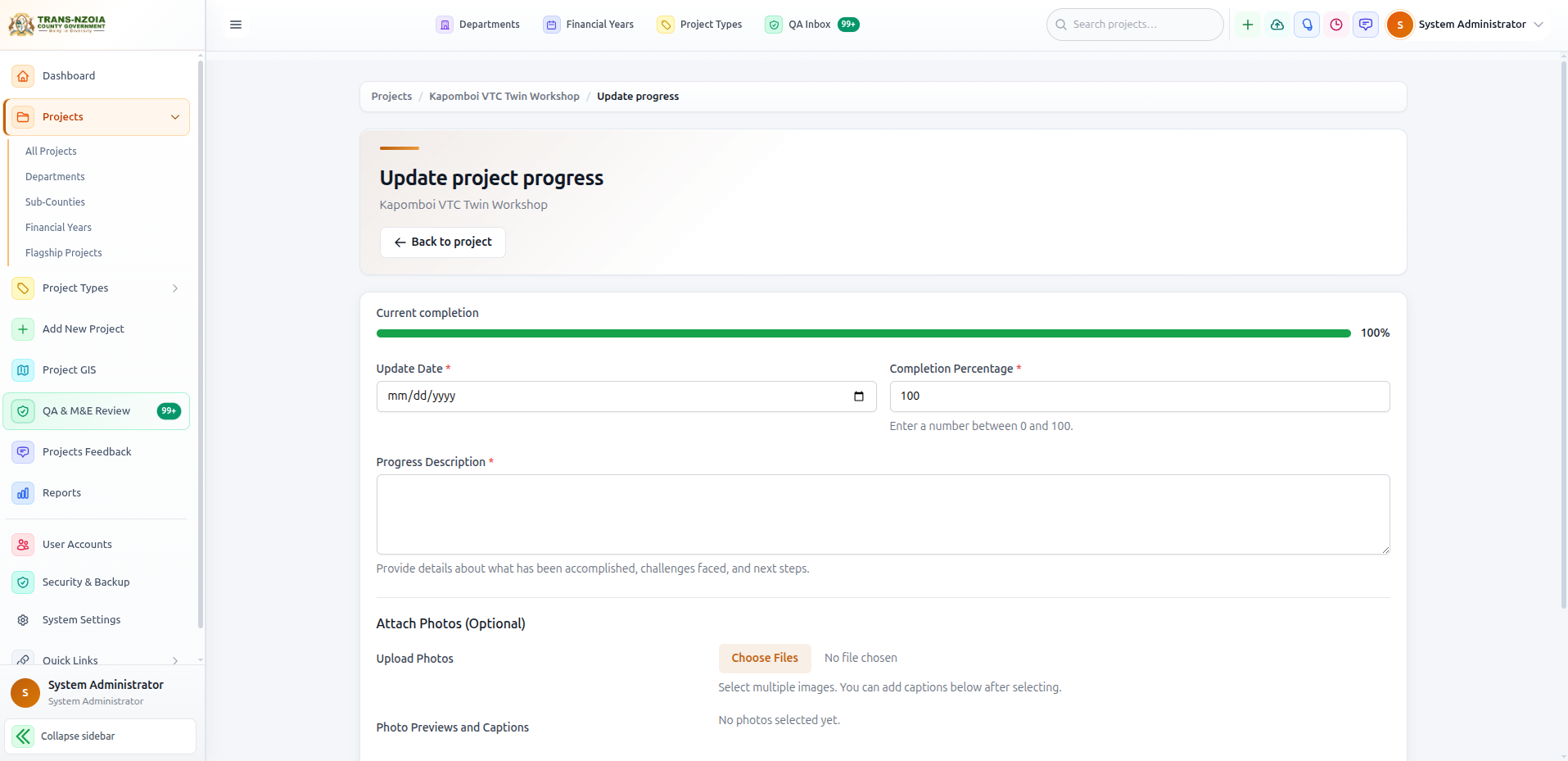
Use Edit Project from the detail page. Department staff can only edit projects in their department unless they hold county-wide or admin privileges. Update percentage complete and expenditure regularly — these drive dashboard KPIs and report accuracy.

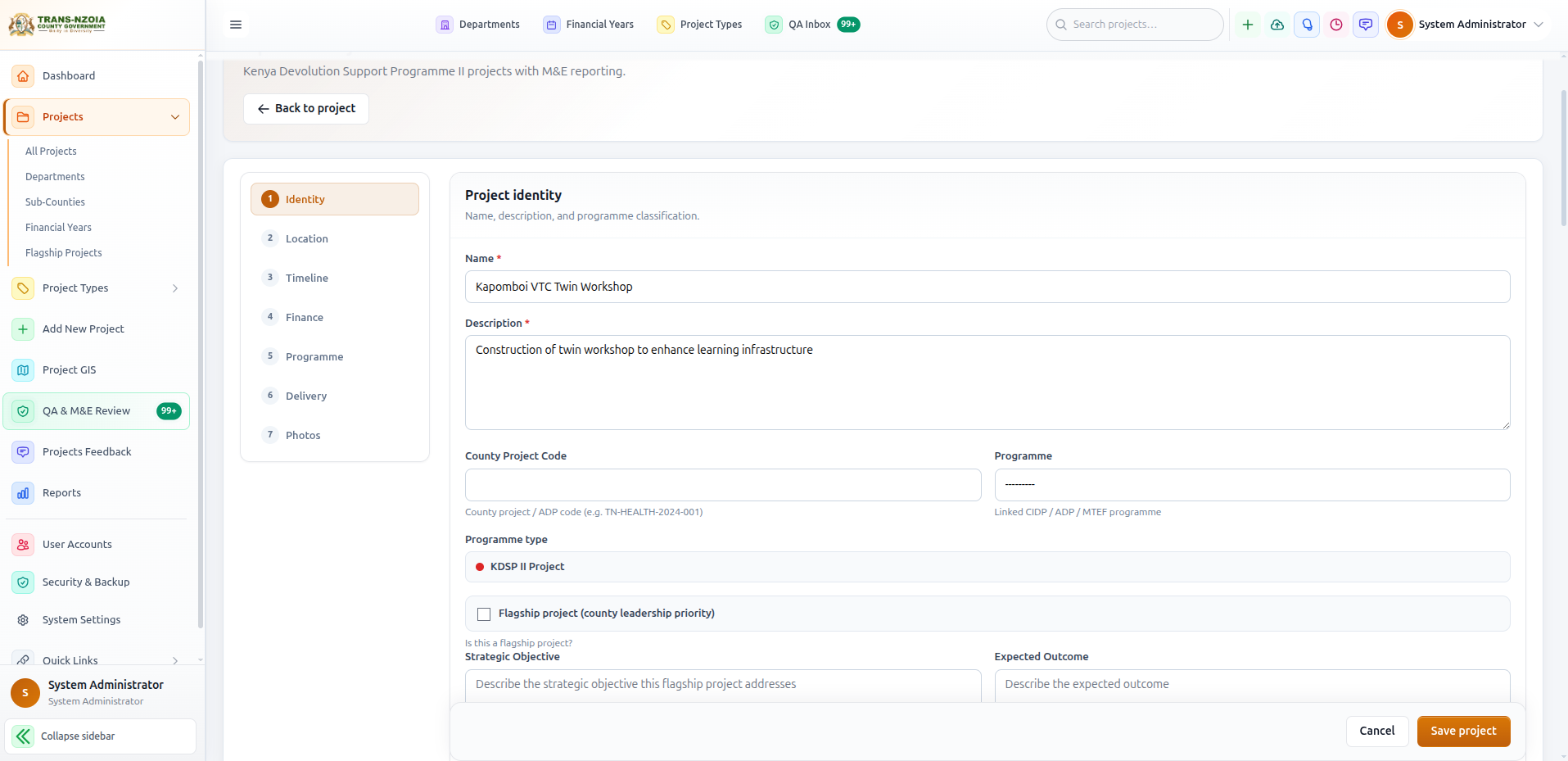
Edit project form
Edit Project — update scope, budget, contractor, and location data.
Update project progress form
Update Progress — record milestone completion and expenditure.

Project GIS map

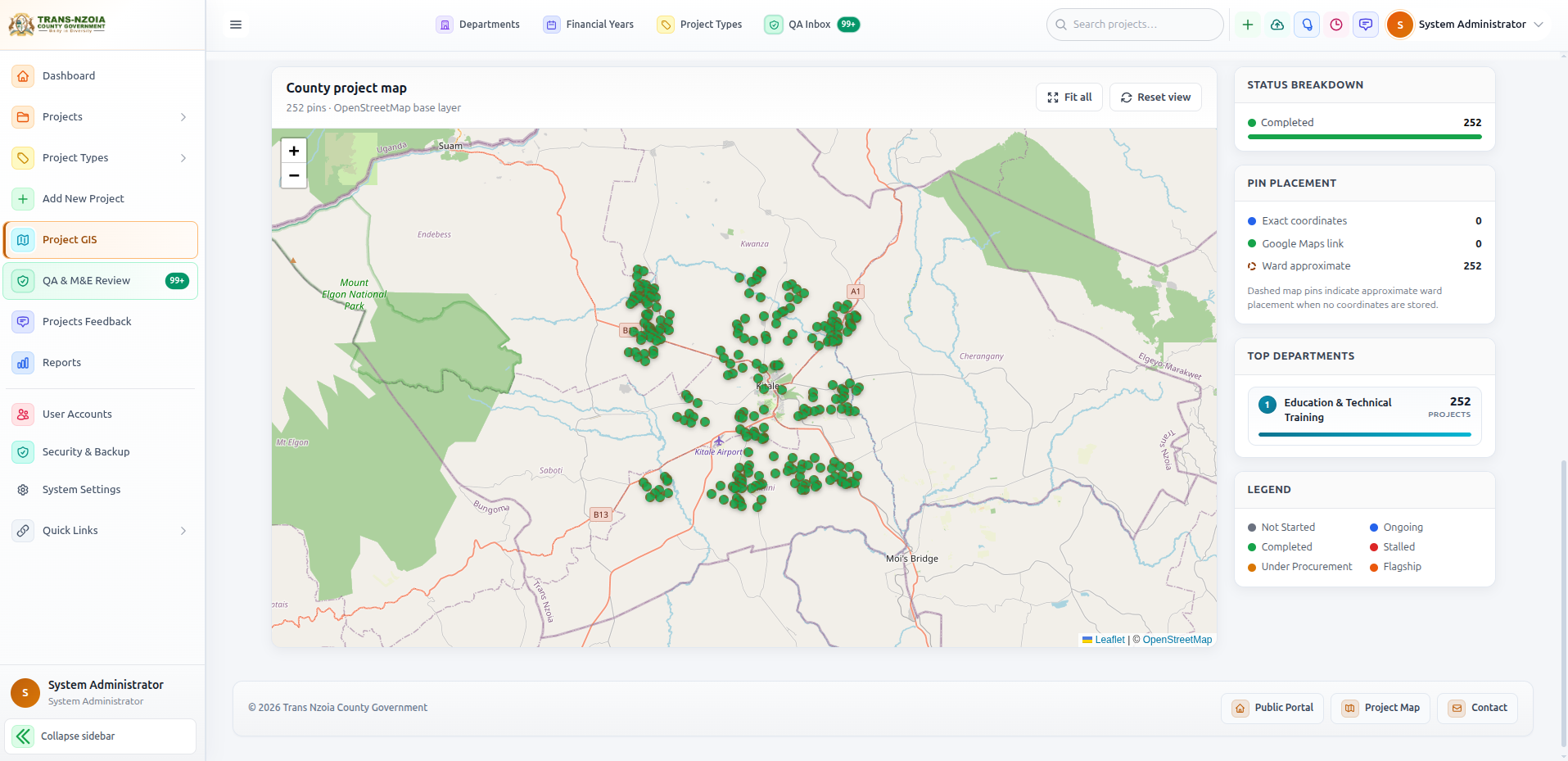
Sidebar → Project GIS opens an interactive map. Filter by department, ward, status, and financial year. Colour-coded markers show project status. Ensure projects have coordinates for map visibility.

County Projects GIS map with filters and legend
Project GIS — verify geographic coverage and identify data gaps.

Executive feedback

County leadership can leave structured executive feedback on a project. Your account role is recorded automatically. Comments appear in the project timeline for accountability.

Bulk Import & Bulk Edit

Excel import for many projects at once; spreadsheet-style bulk editing.

Bulk import (Excel)

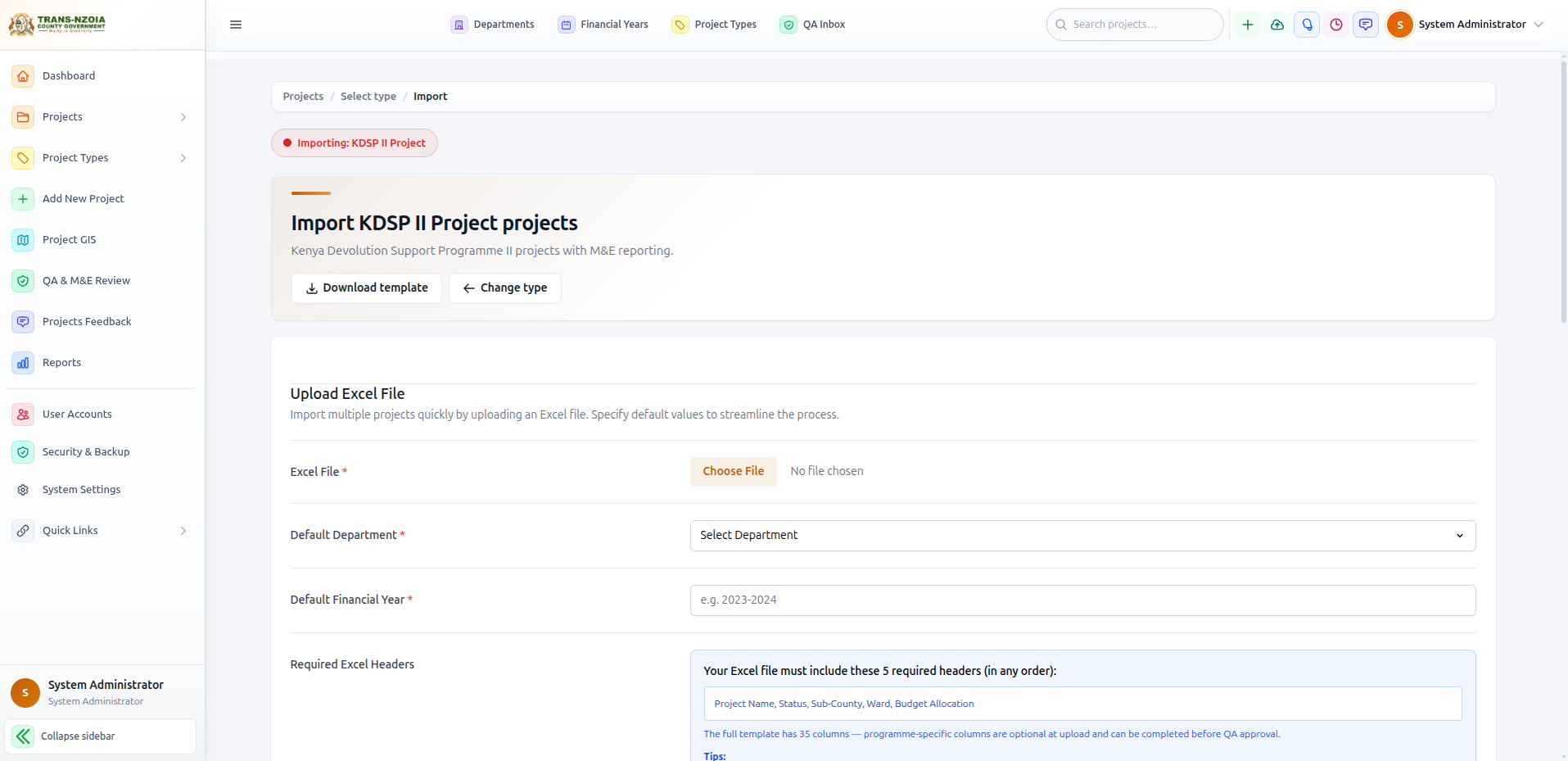
1 Projects → Import → select project type
2 Set defaults: department, financial year, optional sub-county
3 Upload Excel workbook matching the template headers for that type
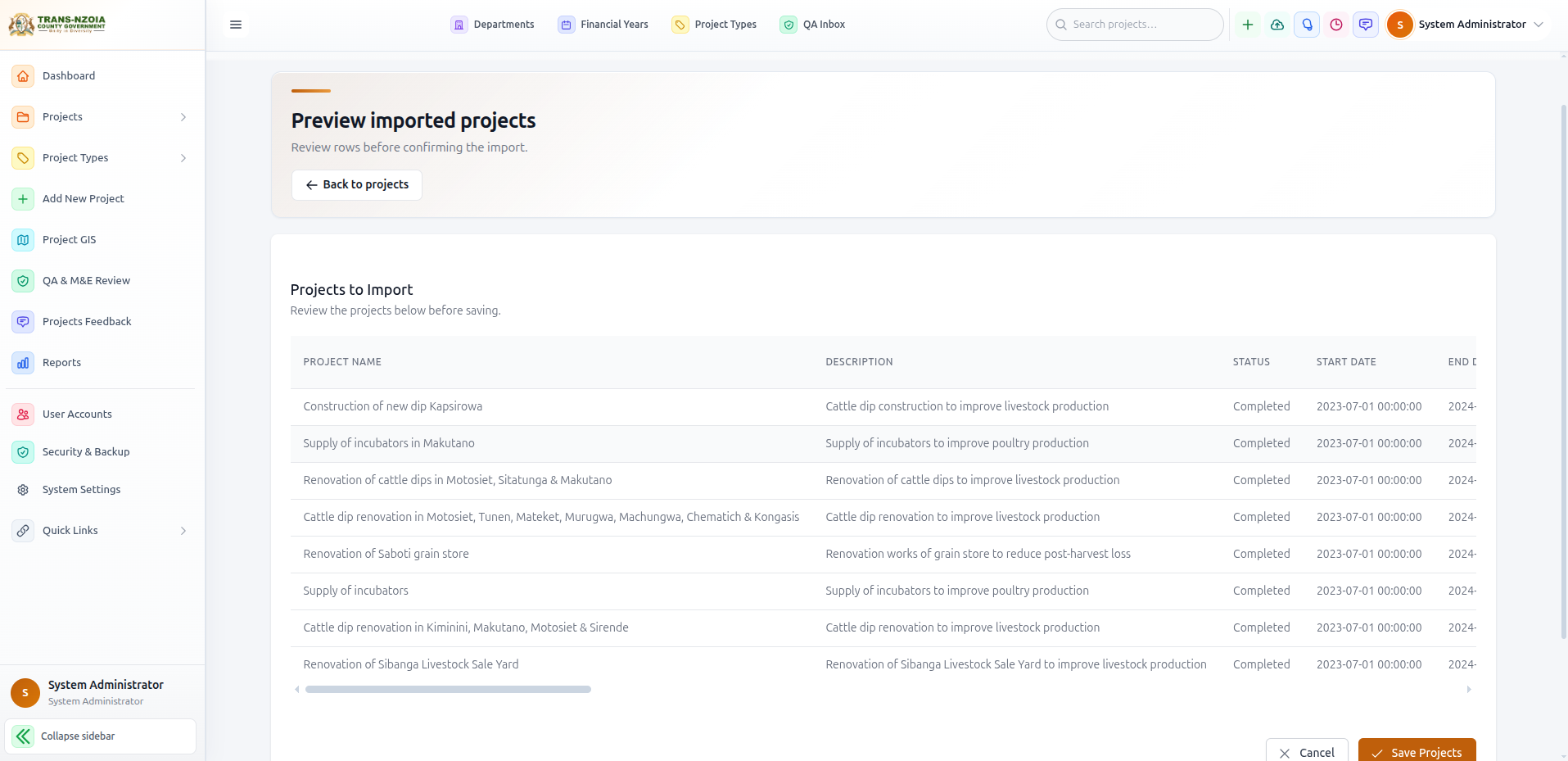
4 Review validation & fuzzy-matched location names
5 Preview parsed rows, fix errors, confirm save
Bulk import projects upload screen
Bulk Import — upload departmental Excel registers with default department and FY.
Preview imported projects before saving
Import preview — resolve validation errors before committing records to the database.

Bulk edit

Open Bulk Edit from the projects list (/projects/bulk-edit/). Filter to the records you need, edit status, progress, and financial fields inline, then save the batch. Changed rows are highlighted; all saves are written to the Activity Log.

QA & M&E Publication

Economic Planning reviews projects before they appear on the public portal.

Publication status controls whether citizens see a project. Department staff prepare records; Economic Planning approves or returns them for correction.

1 Department staff completes project data and submits for QA review
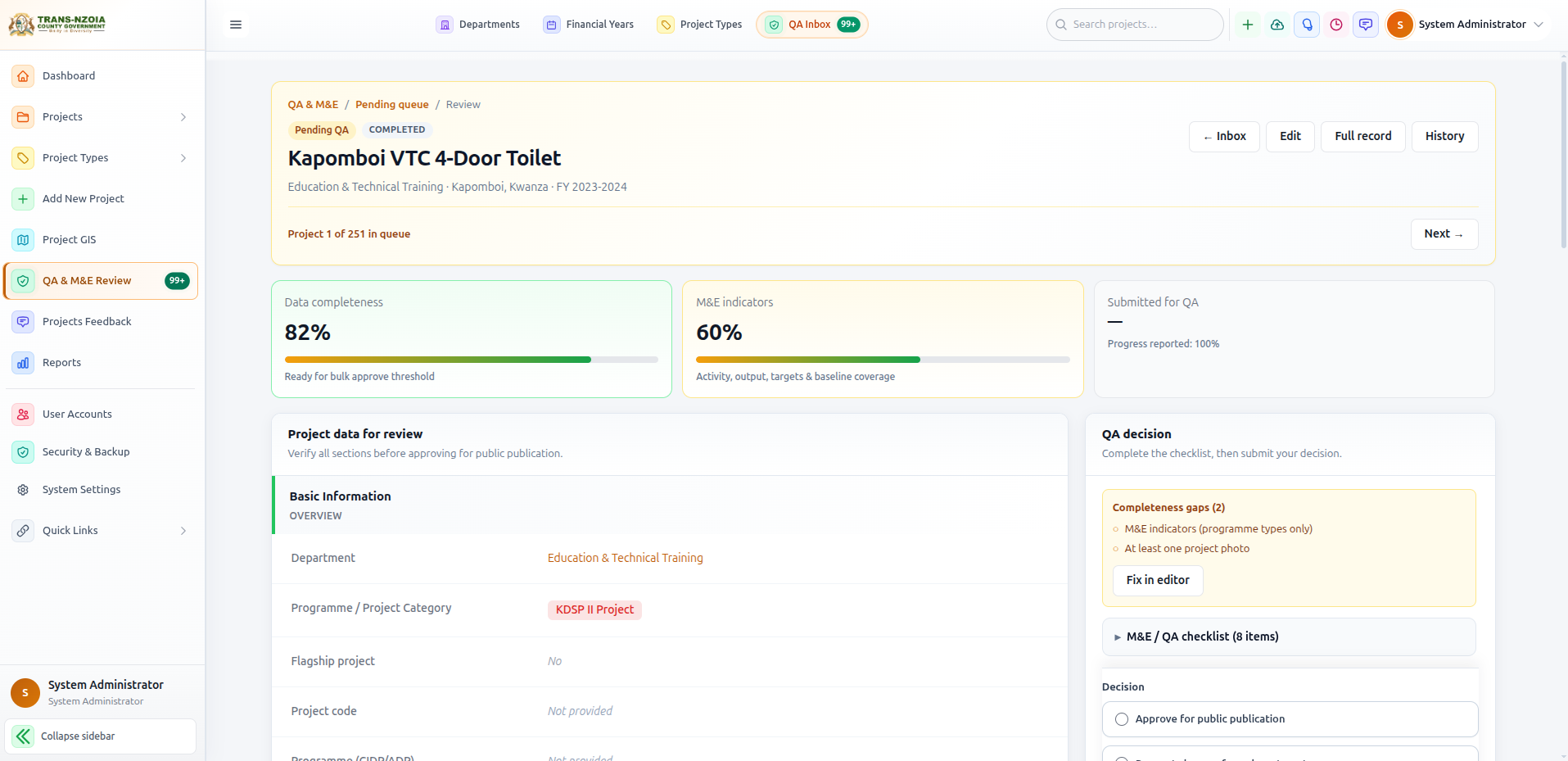
2 Planning reviewer opens QA & M&E Review dashboard
3 Reviewer checks completeness, location, budget, and photos
4 Approve → publication_status = approved (visible on public portal)
5 Reject → returned to department with notes for correction
Individual project QA review screen with approve and reject actions
Project review — verify mandatory fields, photos, and location before approval.

Citizen Feedback

Monitor and respond to public ratings and comments on projects.

Citizens rate projects (1–5) and leave comments on the public portal. The Feedback Dashboard aggregates sentiment by department, sub-county, and ward.

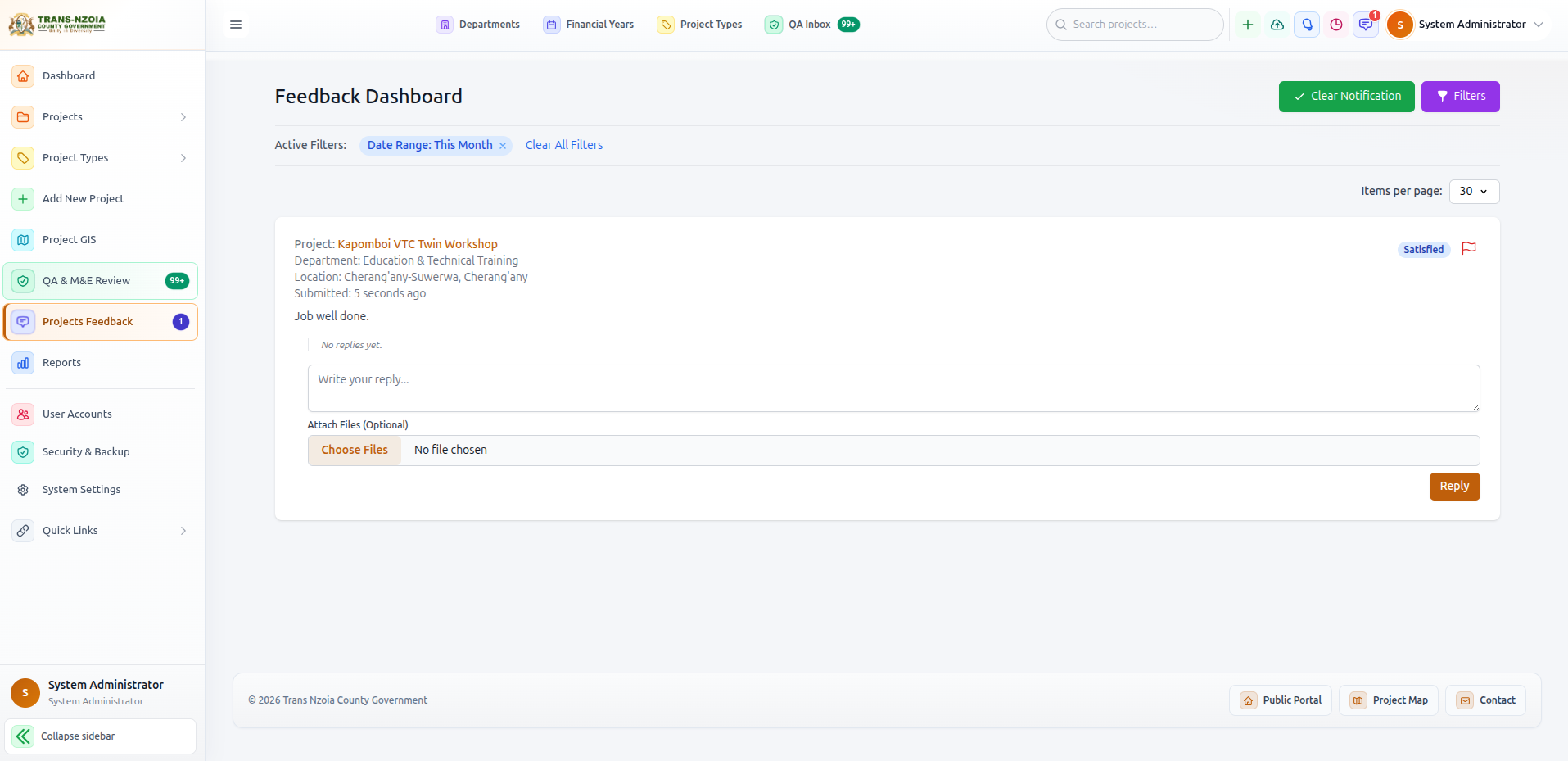
Projects Feedback dashboard with filters and reply tools
Projects Feedback — unread badge in sidebar alerts staff to new citizen comments.
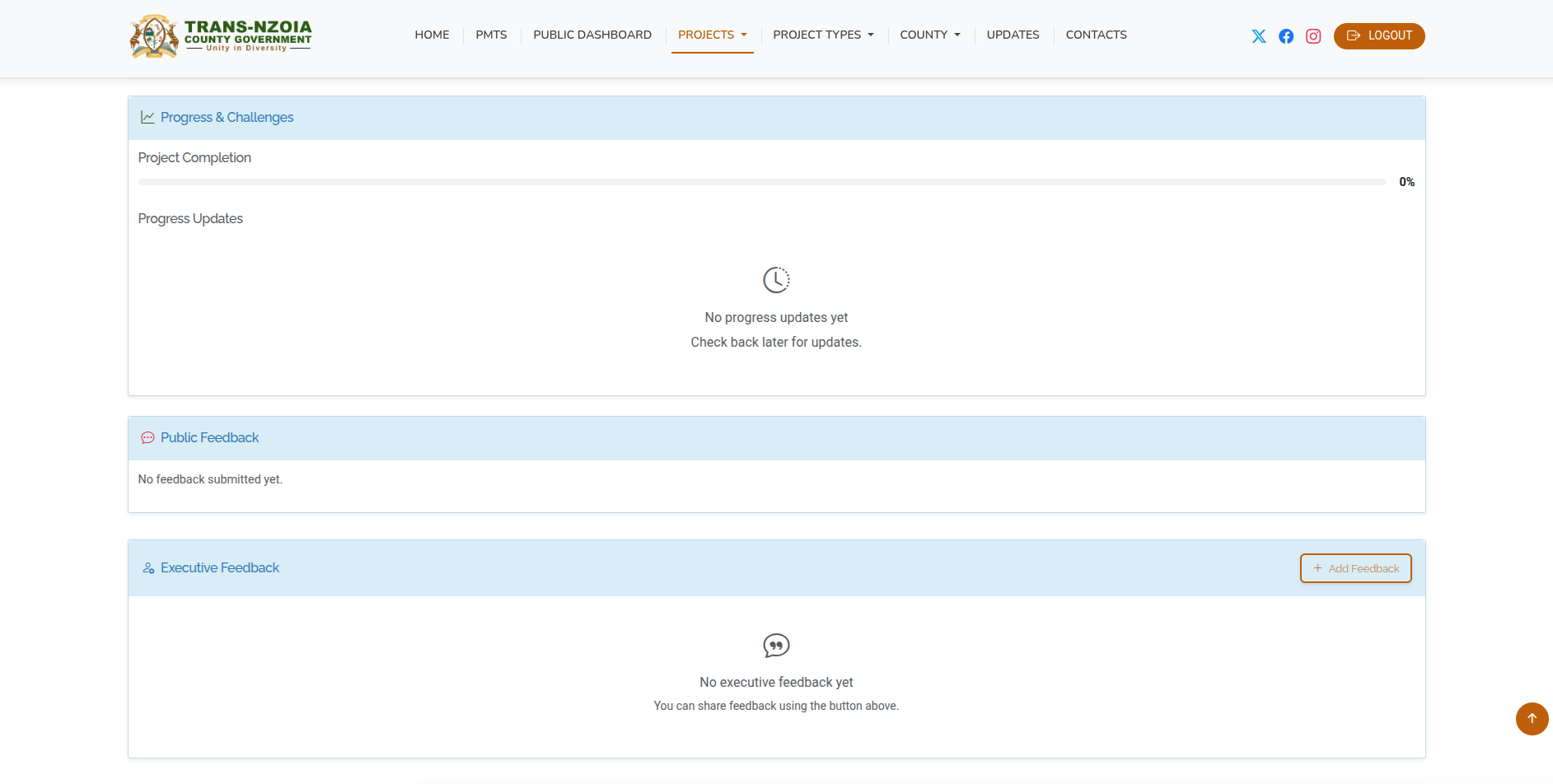
Public portal feedback section on a project detail page
Citizen view — how the public submits ratings and comments on approved projects.
  • Filter feedback by timeframe, location, and department
  • Reply to citizens — responses appear on the public project page
  • Track average ratings and participation rates in Reports
  • Executive dashboard includes sentiment charts and flagged items

Reports & Analytics

Executive reports hub, specialized reports, and PDF export.

Reports hub

Sidebar → Reports opens the analytics hub: KPI strip, financial trend chart, status breakdown, departmental/sub-county/ward performance tables, sentiment, and links to specialized reports.

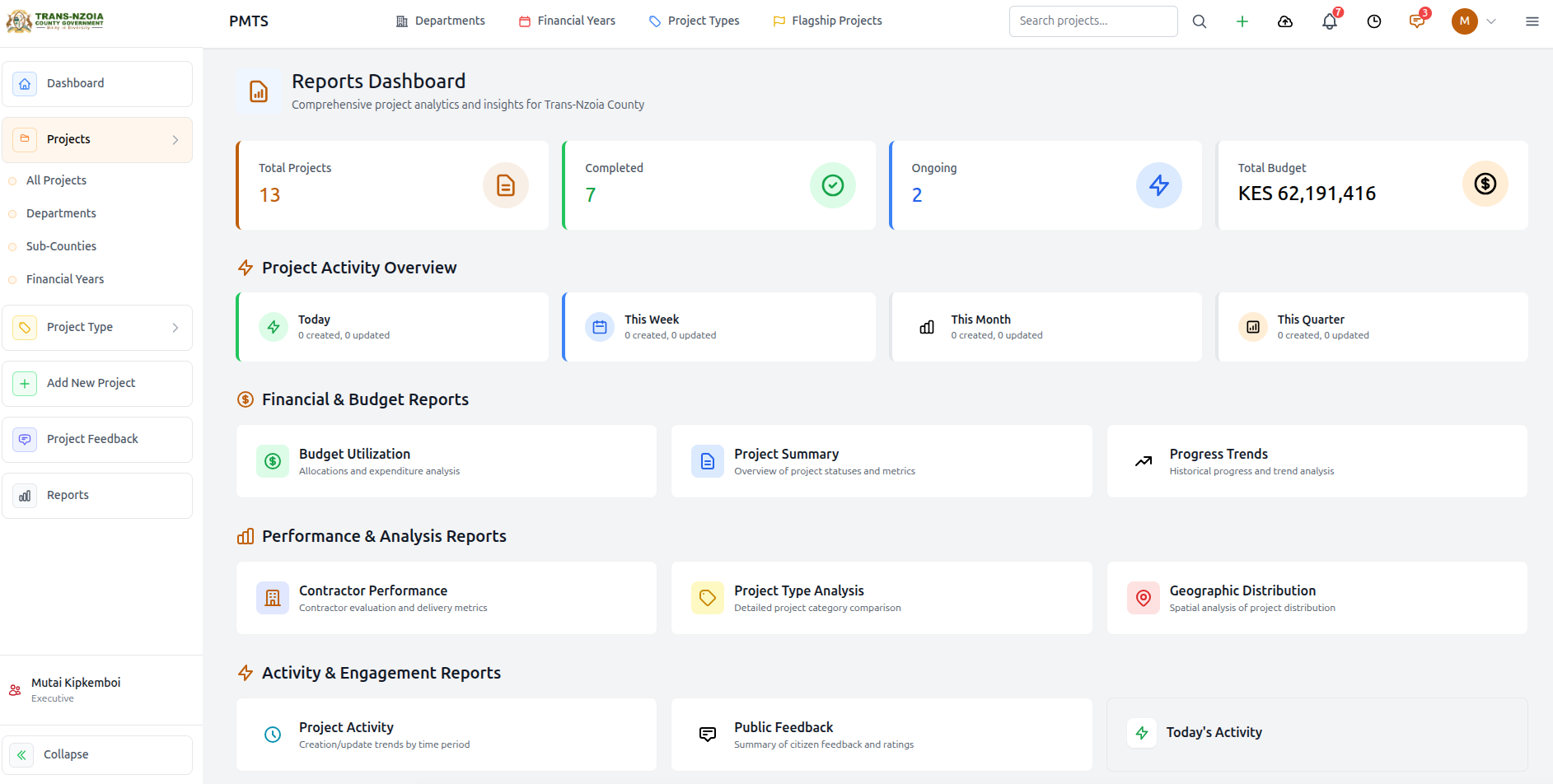
Reports dashboard with charts and KPI tables
Reports hub — county-wide analytics with exportable PDF.
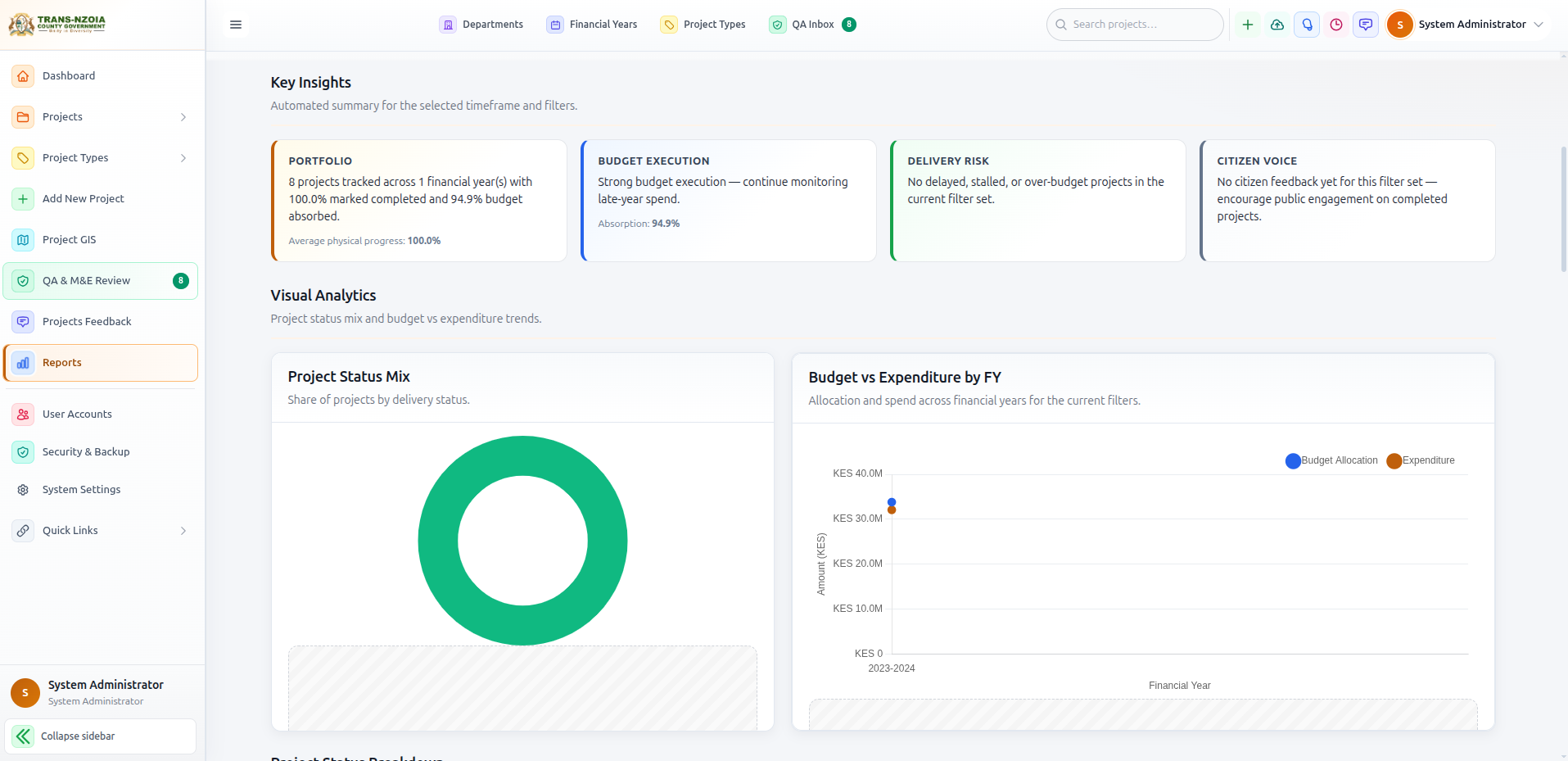
Key Insights panel with risk flags and recommendations
Key Insights — automated highlights for stalled, delayed, and over-budget projects.

Specialized reports

  • Project Summary — portfolio overview by filters
  • Budget Utilization — allocation vs expenditure
  • Feedback Summary — citizen engagement metrics
  • Progress Trends, Contractor Performance, Geographic Distribution, and more

Resources & News Posts

Manage downloadable documents and county news on the public portal.

Resources (Downloads)

Quick Links → Resources. Categories (Policies, Reports, Forms, etc.) are seeded on deploy. County leadership and administrators upload PDFs; all staff can browse. Citizens download from the public Resources page.

News & updates

Quick Links → Posts opens the staff posts dashboard. Create rich-text announcements with categories (News, Announcements, Project Updates, Events). Published posts appear on the public Updates section.

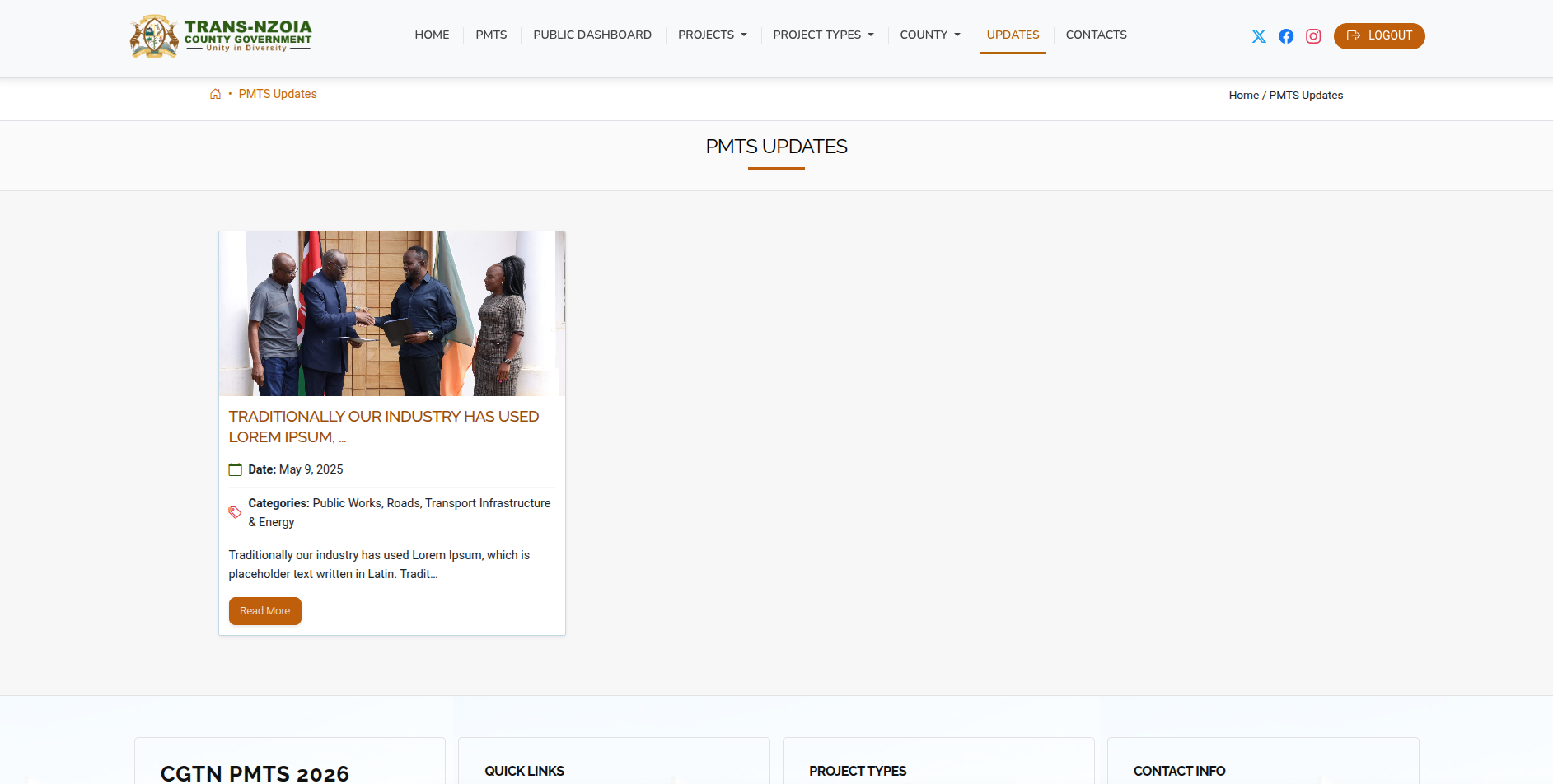
Public Updates page showing county news posts
Public Updates — published posts from the staff Posts dashboard.

User Account Management

Onboarding staff, assigning roles, security, and system settings (administrators).

System administrators manage staff accounts, security, backups, and portal configuration from the admin section of the sidebar.

  1. 1
    Create account

    User Accounts → New user: email, name, role, department (for dept-scoped roles).

  2. 2
    Assign role

    Pick from county leadership, planning, department, or admin tiers.

  3. 3
    Communicate credentials

    Set a temporary password; user changes it on first login.

  4. 4
    Deactivate

    Disable accounts when staff leave — do not delete historical audit data.

  5. 5
    Security & Backup

    Run security scans, create database/media backups, review audit events.

  6. 6
    System Settings

    Update portal homepage, header, footer, SEO, and contact details.

Notifications & Activity Log

Stay informed and audit system changes.

Notifications

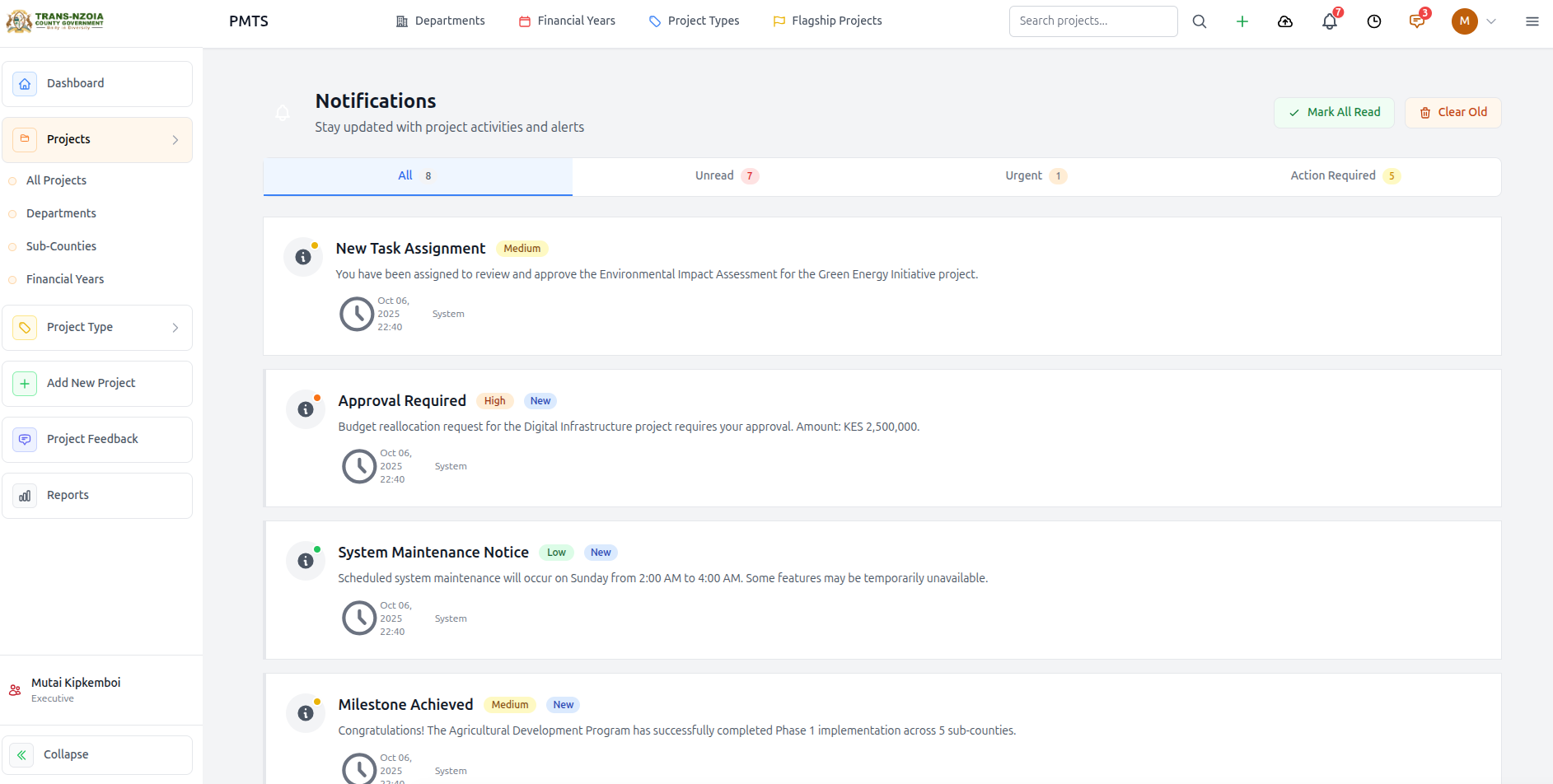
The bell icon in the top bar shows alerts: feedback received, QA decisions, system messages, and assignments. Mark as read or open the full notifications list under Quick Links → Notifications.

Staff notifications list with filter tabs
Notifications — filter by unread, urgent, and actionable items.

Activity log

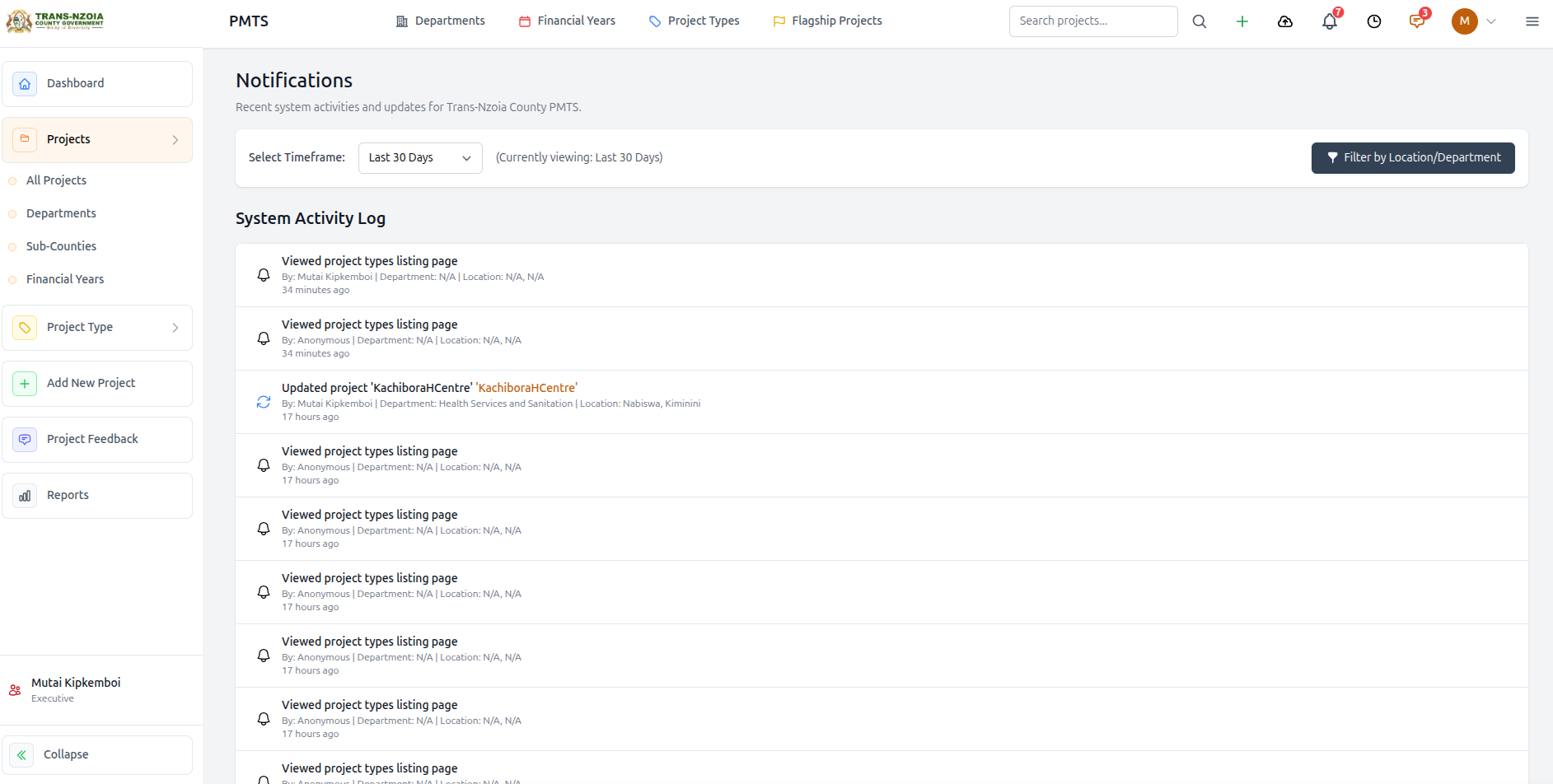
Quick Links → Activity Log records create/update/delete events, bulk edits, imports, and logins. County leadership and administrators can archive old entries and download CSV archives.

System activity log with timeframe and department filters
Activity Log — first place to investigate unexpected data changes.

Public Portal

What citizens see versus the staff workspace.

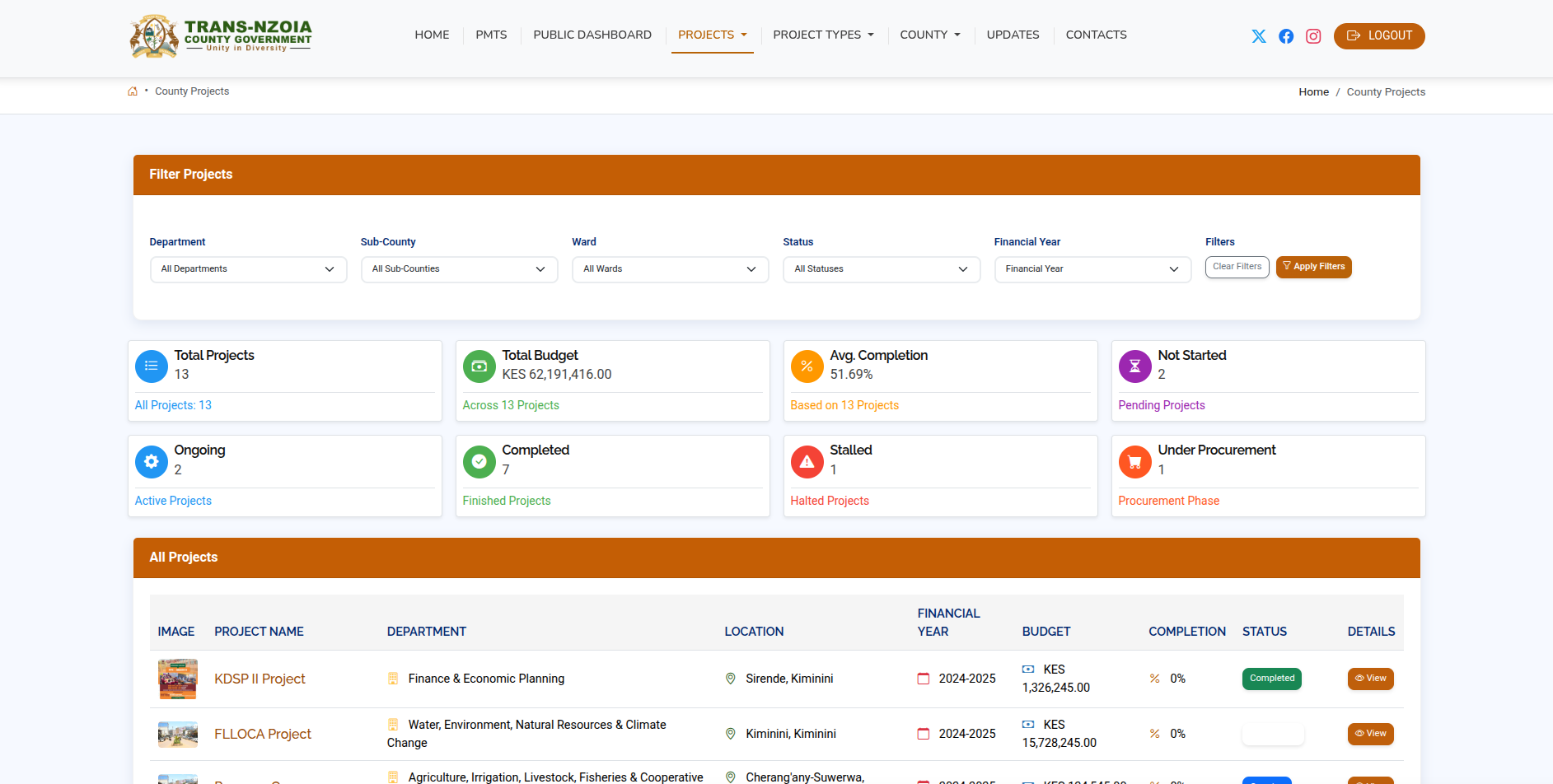
Staff can preview the citizen experience using View Public Portal links or by browsing with ?view=public on project URLs. Only QA-approved projects appear in public listings.

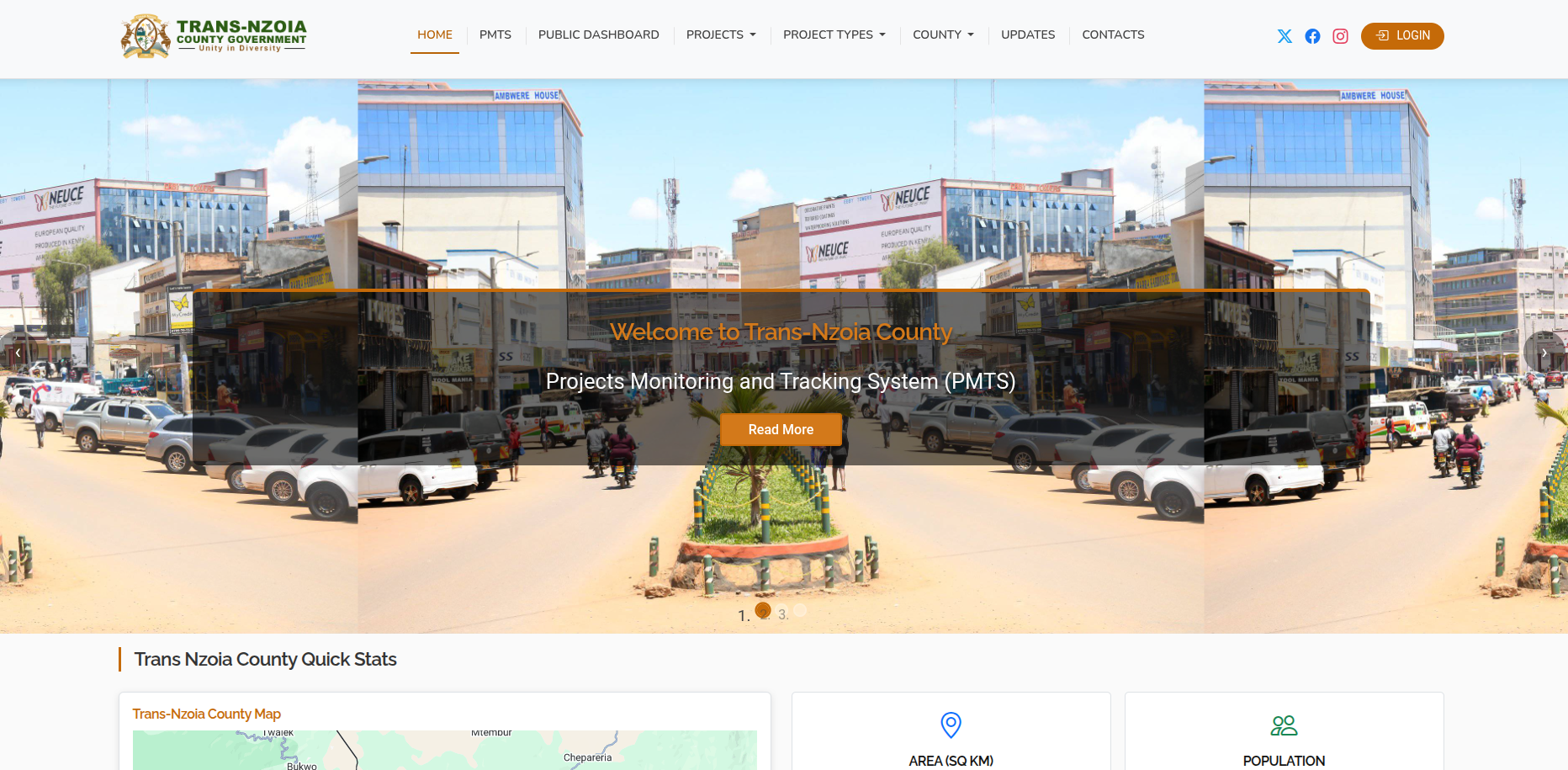
Public portal homepage with county statistics
Public homepage — delivery stats and quick links for citizens.
Public projects list
All Projects — searchable public project gallery.
Public project detail page
Project detail — photos, progress, and feedback form.
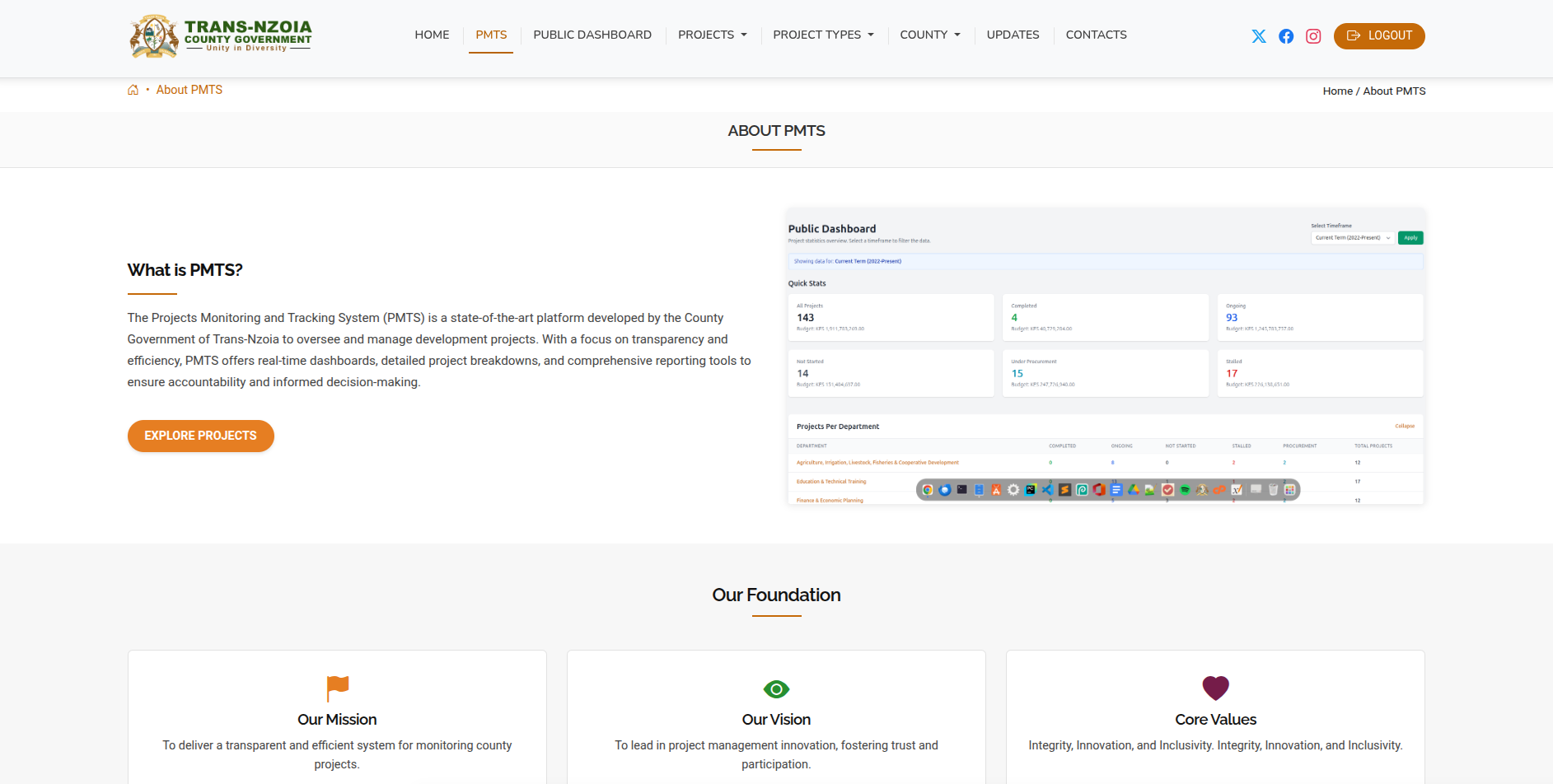
About PMTS page on the public portal
About PMTS — explains the system purpose to citizens and partners.
  • Home — county statistics and financial year quick links
  • All Projects / Flagship — searchable, filterable project gallery
  • Project detail — photos, progress, feedback form
  • Public dashboard — aggregate delivery stats
  • Resources, Updates, FAQs, Contact

End-to-End Workflows

Reference diagrams for common multi-step processes.

New project → public visibility

1 Department staff creates project (draft)
2 Data entry: budget, location, photos, programme fields
3 Submit for QA review
4 Planning approves publication
5 Project visible on public portal; citizens can submit feedback

Bulk stock-take (existing Excel registers)

1 Download import template for project type
2 Fill Excel from departmental register
3 Import with defaults (dept + FY)
4 Validate preview → save batch
5 QA sample-check and approve publications

Monthly reporting cycle

1 Department staff update progress & expenditure (by 5th of month)
2 Chief Officer reviews departmental dashboard
3 Planning QA spot-checks new/changed publications
4 County leadership reviews Reports hub + Key Insights
5 Export PDF briefing for CEC / executive committee

Frequently Asked Questions

Quick answers to common staff questions.

Why can't I create projects?

Only department staff and administrators hold project manager permissions. County leadership roles can view and report but not create records.

Why was I redirected away from the dashboard?

Your account may have the public/citizen role, or you opened a page your role cannot access. Contact the system administrator to verify your role assignment.

My project doesn't appear on the public website.

Check publication_status. It must be approved by Economic Planning QA before public visibility.

Import failed — what should I check?

Verify Excel headers match the template, financial year format is YYYY-YYYY, ward names match the county gazette list, and department is selected in defaults.

Where is the full system documentation?

Staff: sidebar → Quick Links → System Documentation. Public website footer also links to this manual. Export PDF from the top of the documentation page.

Can I use this manual for training workshops?

Yes. Export the PDF, walk through the Staff Training Paths section, and practise on test projects before working on live data.

Support & Troubleshooting

Escalation paths and best practices.

  • System administrator — account access, role changes, password resets, backups
  • Economic Planning — QA publication rules, reporting definitions
  • ICT / vendor support — platform errors, deploy issues, integrations
  • Activity Log — first place to check when data changes unexpectedly